Thursday, 10 October 2019

Windows NFS

Install the NFS Client (Services for NFS)

The first thing we need to do is install the NFS Client which can be done by following the steps below:
Step 1: Open Programs and Features.
Windows 10: Open Programs and Features
Step 2: Click Turn Windows features on or off.
Turn Windows 10 Features On or Off
Step 3: Scroll down and check the option Services for NFS, then click OK.
Windows 10: Enable Services for NFS
Step 4: Once installed, click Close and exit back to the desktop.

Enable Write Permissions for the Anonymous User

With the default options you will only have read permissions when mounting a UNIX share using the anonymous user. We can give the anonymous user write permissions by changing the UID and GID that it uses to mount the share.
The image below shows the a share mounted using the default settings.
Windows 10: NFS Mount Command
To change the UID and GID we need to make a simple change to the Windows registry by performing the following steps:
  1. Open regedit by typing it in the search box end pressing Enter.
  2. Browse to HKEY_LOCAL_MACHINE\SOFTWARE\Microsoft\ClientForNFS\CurrentVersion\Default.
  3. Create a new New DWORD (32-bit) Value inside the Default folder named AnonymousUid and assign the UID found on the UNIX directory as shared by the NFS system.
  4. Create a new New DWORD (32-bit) Value inside the Default folder named AnonymousGid and assign the GID found on the UNIX directory as shared by the NFS system. Windows 10: Regedit NFS AnonymousUid and AnonymousGid
  5. Restart the NFS client or reboot the machine to apply the changes.
The output of the mount command should now look like this:
Local    Remote                                 Properties
-------------------------------------------------------------------------------
Z:       \\10.1.1.211\mnt\vms                   UID=0, GID=0
                                                rsize=1048576, wsize=1048576
                                                mount=soft, timeout=1.6
                                                retry=1, locking=yes
                                                fileaccess=755, lang=ANSI
                                                casesensitive=no
                                                sec=sys
Notice the 0 value applied to the UID and GID. This means the share is mounted using the root user.

How to Mount an NFS Share

Assuming your NAS device is on the same network as your Windows machine and the IP address of the device is 10.1.1.211, the following command will mount a share on the NFS system at /mnt/vms.
C:\Users\windows>mount -o anon \\10.1.1.211\mnt\vms Z:
Z: is now successfully connected to \\10.1.1.211\mnt\vms

The command completed successfully.
The share is now mounted and we can access the data by navigating to the Z: drive.
Mounted NFS Share in Windows 10
That’s it, we can now write to the NAS device. Although, I did notice that trying to open the share for the first time takes a long time.

Tuesday, 24 September 2019

install and configure FreeIPA on Red Hat Linux

server's /etc/hosts file pointing to itself:
 
# cat /etc/hosts
127.0.0.1   localhost localhost.localdomain localhost4 localhost4.localdomain4
::1         localhost localhost.localdomain localhost6 localhost6.localdomain6

192.168.122.147 rhel7.ipa.linuxconfig.org rhel7
 
 
And the hostname provided in the hosts file MUST be the FQDN of the machine.

 # hostname
rhel7.ipa.linuxconfig.org
 This is an important step, don't miss it. The same hostname needed in the network file:

 # grep HOSTNAME /etc/sysconfig/network
HOSTNAME=rhel7.ipa.linuxconfig.org 
 
yum command will do: 

 # yum install ipa-server ipa-server-dns
 On a base install, yum will provide a long list of 
dependencies, including Apache Tomcat, Apache Httpd, 389-ds (the LDAP 
server), and so on. After yum finishes, open the ports needed on the 
firewall:

 # firewall-cmd --add-service=freeipa-ldap
success
# firewall-cmd --add-service=freeipa-ldap --permanent
success 
 

Setup

# ipa-server-install

The log file for this installation can be found in /var/log/ipaserver-install.log
==============================================================================
This program will set up the IPA Server.

This includes:
  * Configure a stand-alone CA (dogtag) for certificate management
  * Configure the Network Time Daemon (ntpd)
  * Create and configure an instance of Directory Server
  * Create and configure a Kerberos Key Distribution Center (KDC)
  * Configure Apache (httpd)
  * Configure the KDC to enable PKINIT

To accept the default shown in brackets, press the Enter key.

WARNING: conflicting time&date synchronization service 'chronyd' will be disabled
in favor of ntpd

## we'll use the integrated DNS server
Do you want to configure integrated DNS (BIND)? [no]: yes

Enter the fully qualified domain name of the computer
on which you're setting up server software. Using the form
<hostname>.<domainname>
Example: master.example.com.

## pressing 'enter' means we accept the default in the bracelets
## this is the reason we set up the proper FDQN for the host
Server host name [rhel7.ipa.linuxconfig.org]:       

Warning: skipping DNS resolution of host rhel7.ipa.linuxconfig.org
The domain name has been determined based on the host name.

## now we don't have to type/paste domain name
## and the installer don’t need to try setting the host’s name
Please confirm the domain name [ipa.linuxconfig.org]:      
           
The kerberos protocol requires a Realm name to be defined.
This is typically the domain name converted to uppercase.

## the Kerberos realm is mapped from the domain name
Please provide a realm name [IPA.LINUXCONFIG.ORG]:      
Certain directory server operations require an administrative user.
This user is referred to as the Directory Manager and has full access
to the Directory for system management tasks and will be added to the
instance of directory server created for IPA.
The password must be at least 8 characters long.

## Directory Manager user is for the low-level operations, like creating replicas
Directory Manager password: 
## use a very strong password in a production environment!      
Password (confirm):          

The IPA server requires an administrative user, named 'admin'.
This user is a regular system account used for IPA server administration.

## admin is the "root" of the FreeIPA system – but not the LDAP directory
IPA admin password:          
Password (confirm): 

Checking DNS domain ipa.linuxconfig.org., please wait ...
## we could setup forwarders, but this can be set later as well
Do you want to configure DNS forwarders? [yes]: no     
No DNS forwarders configured
Do you want to search for missing reverse zones? [yes]: no

The IPA Master Server will be configured with:
Hostname:       rhel7.ipa.linuxconfig.org
IP address(es): 192.168.122.147
Domain name:    ipa.linuxconfig.org
Realm name:     IPA.LINUXCONFIG.ORG

BIND DNS server will be configured to serve IPA domain with:
Forwarders:       No forwarders
Forward policy:   only
Reverse zone(s):  No reverse zone

Continue to configure the system with these values? [no]: yes

## at this point the installer will work on its own,
## and complete the process in a few minutes. The perfect time for coffee.
The following operations may take some minutes to complete.    
Please wait until the prompt is returned.      

Configuring NTP daemon (ntpd)
  [1/4]: stopping ntpd ...
The output of the installer is rather long, you can see as all components configured, restarted, and verified. At the end of the output, there some steps needed for full functionality, but not for the installation process itself.
... The ipa-client-install command was successful

==============================================================================
Setup complete

Next steps:
 1. You must make sure these network ports are open:
  TCP Ports:
    * 80, 443: HTTP/HTTPS
    * 389, 636: LDAP/LDAPS
    * 88, 464: kerberos
    * 53: bind
  UDP Ports:
    * 88, 464: kerberos
    * 53: bind
    * 123: ntp

 2. You can now obtain a kerberos ticket using the command: 'kinit admin'
    This ticket will allow you to use the IPA tools (e.g., ipa user-add)
    and the web user interface.

Be sure to back up the CA certificates stored in /root/cacert.p12
These files are required to create replicas. The password for these
files is the Directory Manager password
As the installer points out, be sure to backup the CA cert, and open additional needed ports on the firewall.

Now let's enable home directory creation on login:
# authconfig --enablemkhomedir –-update 
 

Verification

We can start testing if we have a working service stack. Let's test if we can get a Kerberos ticket for the admin user (with the password given to the admin user during install): # kinit admin Password for admin@IPA.LINUXCONFIG.ORG : # klist Ticket cache: KEYRING:persistent:0:0 Default principal: admin@IPA.LINUXCONFIG.ORG Valid starting Expires Service principal 2018-06-24 21.44.30 2018-06-25 21.44.28 krbtgt/IPA.LINUXCONFIG.ORG@IPA.LINUXCONFIG.ORG The host machine is enrolled into our new domain, and the default rules grant ssh access to the above-created admin user to all enrolled host. Let's test if these rules work as expected by opening ssh connection to localhost: # ssh admin@localhost Password: Creating home directory for admin. Last login: Sun Jun 24 21:41:57 2018 from localhost $ pwd /home/admin $ exit Let's check the status of the whole software stack:

# ipactl status Directory Service: RUNNING krb5kdc Service: RUNNING kadmin Service: RUNNING named Service: RUNNING httpd Service: RUNNING ipa-custodia Service: RUNNING ntpd Service: RUNNING pki-tomcatd Service: RUNNING ipa-otpd Service: RUNNING ipa-dnskeysyncd Service: RUNNING ipa: INFO: The ipactl command was successful And - with the Kerberos ticket acquired earlier - ask for information about the admin user using the CLI tool:

# ipa user-find admin -------------- 1 user matched -------------- User login: admin Last name: Administrator Home directory: /home/admin Login shell: /bin/bash Principal alias: admin@IPA.LINUXCONFIG.ORG UID: 630200000 GID: 630200000 Account disabled: False ---------------------------- Number of entries returned 1 ---------------------------- 

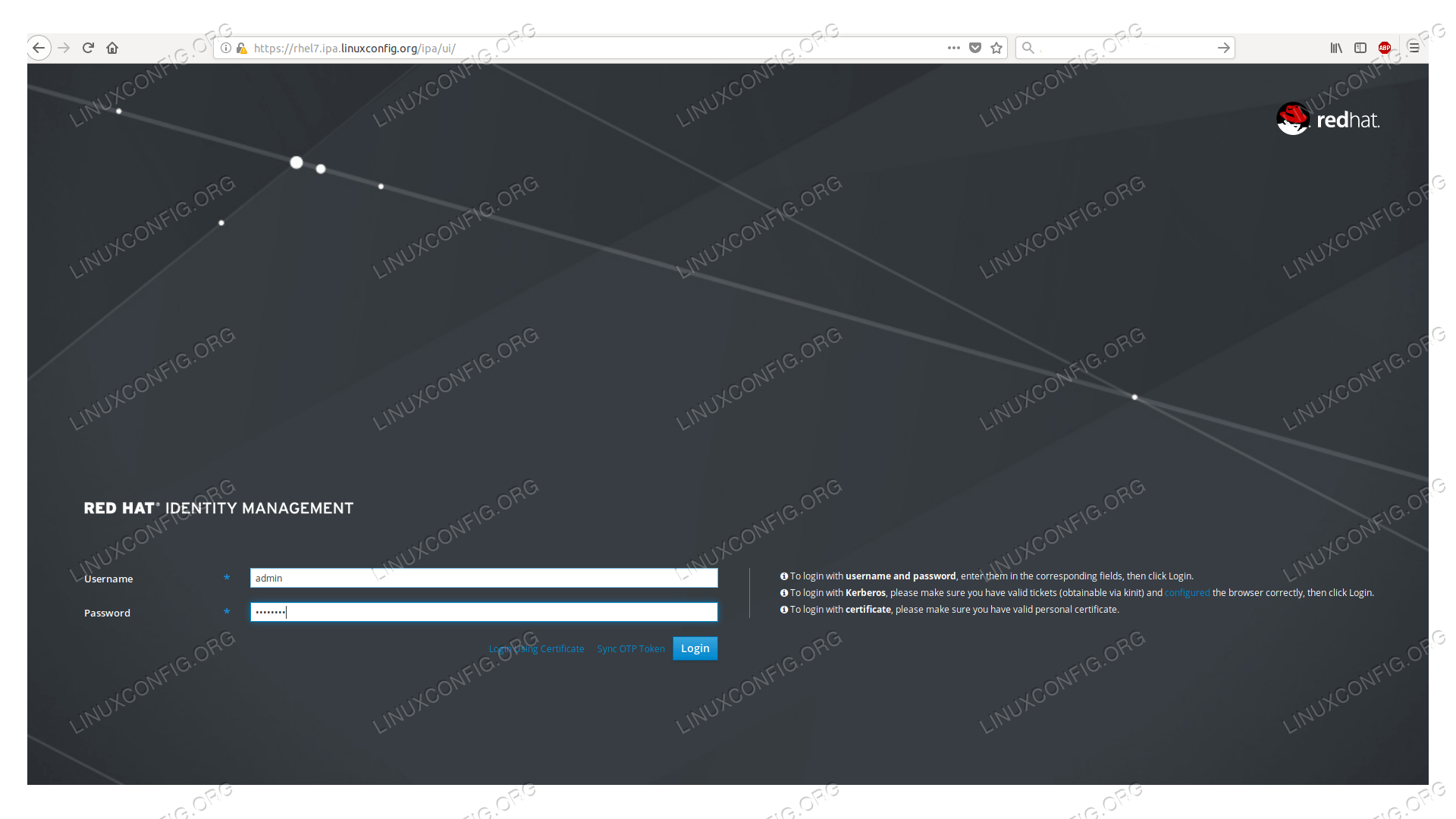
we installed a self-signed root certificate, the browser will warn us about it.

FreeIPA login page
Login page of the FreeIPA WUI
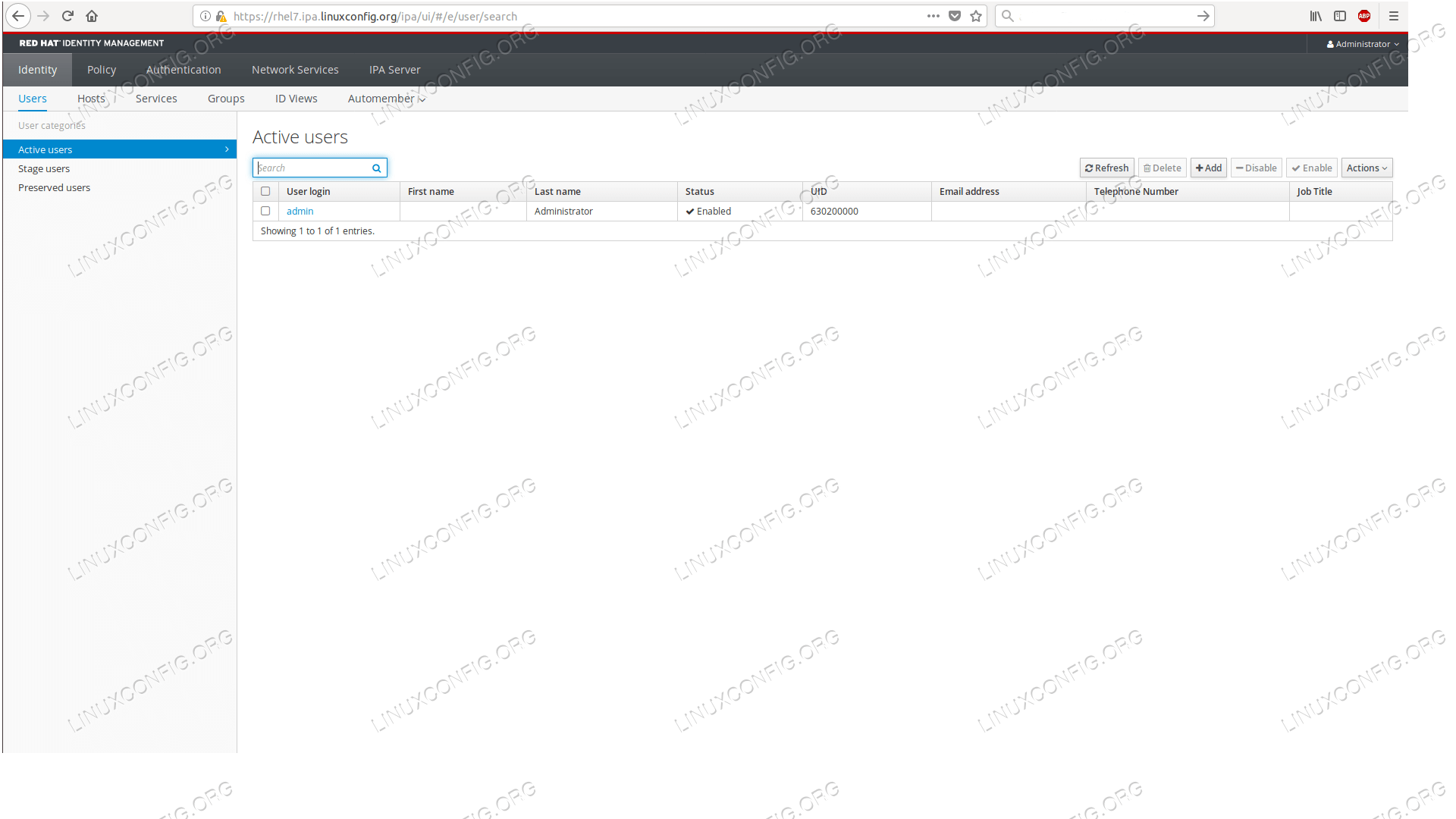
The default page after login shows the list of our users, where now only the admin user appears.

FreeIPA user list
The default page after login is the userlist in FreeIPA WUI


With this we completed our goal, we have a running FreeIPA server ready to be populated with users, hosts, certificates, and various rules.


Monday, 16 September 2019

user Disable foe Linux


1. Lock the password


# usermod -L testuser
 
# passwd -l testuser
 

2. Expire the user account


# chage -E0 testuser

3. Changing the shell

# usermod -s /sbin/nologin [username]

Verify if the account is locked or disabled.

1. Check if the user account is locked.
Check for the flag *LK* in the below command output which indicates that the account is locked.
# passwd --status root
root *LK* 2017-07-19 0 45 7 -1 (Password set, SHA512 crypt.)
2. Check if the account has an expire date.
Check for the lines Password expires and Account expires to check if the account password is expired.
# chage -l root
Last password change                                    : Jul 19, 2017
Password expires                                        : Sep 02, 2017
Password inactive                                       : never
Account expires                                         : Sep 02, 2017
Minimum number of days between password change          : 0
Maximum number of days between password change          : 45
Number of days of warning before password expires       : 7
3. Check for non-interactive shell
Check if the user shell has been changed to a non-interactive shell like /sbin/nologin.
# grep ^root /etc/passwd
root:x:0:0:root:/root:/sbin/nologin

  ++++++++++++++++++++++++++++++++++++++++

Linux check user password expiration using chage

  1. Open the terminal application
  2. Type chage -l userName command to display password expiration information for Linux user account.
  3. The -l option passed to the change show account aging information.
  4. Check tom user’s password expiry time, run: sudo chage -l tom
Let us see some examples and usage information in details.

View account again information on Linux

To see account aging information such as expiry date and time, enter:
chage -l {userNameHere}
chage -l userNameHere
To see account aging info for usernamed vivek, enter:
$ chage -l vivek
Sample outputs:
Last password change     : Jan 10, 2012
Password expires     : never
Password inactive     : never
Account expires      : never
Minimum number of days between password change  : 0
Maximum number of days between password change  : 99999
Number of days of warning before password expires : 7
The above outputs indicates that password aging disabled.

Check the user account password expiry information on Linux

Let us try one more example:
$ sudo chage -l raj
Sample outputs:
Last password change     : May 21, 2012
Password expires     : Jun 20, 2012
Password inactive     : never
Account expires      : Jan 01, 2013
Minimum number of days between password change  : 7
Maximum number of days between password change  : 30
Number of days of warning before password expires : 7
It seems that user account scheduled to expire on 01/Jan/2013. You can use the grep command to filter out info too:
$ sudo chage -l raj | grep 'Password expires'

Change password expiry date

You can set the maximum number of days during which a password is valid. For example, make sure password is valid for 90 days for user named jerry:
sudo chage -M 90 jerry
sudo chage -l jerry

Please note that passing the number -1 will remove checking a password’s validity:
sudo chage -M -1 tom
You can also set the minimum number of days between password changes:
sudo chage -m 30 jerry
However, a value of zero indicates that the user may change his/her password at any time:
sudo chage -m 0 marlena

Set expire date

The syntax is:
sudo chage -E EXPIRE_DATE userName
One can set the date or number of days since January 1, 1970 on which the user’s account will no longer be accessible. The date may also be expressed in the format YYYY-MM-DD (or the format more mmonly used in your area). A user whose account is locked must contact the system administrator before being able to use the system again.
sudo chage -E 2020-03-31 sai
Passing the number -1 as the EXPIRE_DATE will remove an account expiration date:
sudo chage -E -1 tristan

Set warning for the user before password expires

Try using the following syntax to set the number of days of warning before a password change is required:
sudo chage -W WARN_DAYS userName
sudo chage -W 30 raj

The WARN_DAYS option is the number of days prior to the password expiring that a user will be warned his/her password is about to expire. Verify info with following command:
sudo chage -l raj
Linux Check User Password Expiration Date Time with chage


Thursday, 13 June 2019

OSB

#obtool

 ob> lsuser --long username
ob> chuser --class oracle lashdown
ob> mkuser username --class admin --password "sia#2018" --givenname "username" --unixname root --unixgroup "root" --preauth OSB:username+rman+cmdline --ndmpuser no

Wednesday, 29 May 2019

Displaying Fibre Channel Devices

Displaying Fibre Channel Devices

The commonly used commands for adding, removing, and displaying FC devices are as follows:
fcinfo – Collects and displays administrative information about FC-HBA ports on hosts, remote ports, and configured logical units. For more information, see the fcinfo(1M) man page. The following examples show the most common administration operations that can be performed by using the fcinfo command:
Example 1  Display Information of the HBA Ports and Their Link Statistics To list information of the HBA ports and their link statistics use the fcinfo hba-port -l command.
# fcinfo hba-port -l
HBA Port WWN: 2100000e1ec95100
        Port Mode: Initiator
        Port ID: 150300
        OS Device Name: /dev/cfg/c6
        Manufacturer: QLogic Corp.
        Model: 7023303
        Firmware Version: 8.05.00
        FCode/BIOS Version:  BIOS: 3.19; fcode: 4.02; EFI: 5.36;
        Serial Number: 463916R+1606293054
        Driver Name: qlc
        Driver Version: 161214-5.06a
        Type: N-port
        State: online
        Supported Speeds: 4Gb 8Gb 16Gb
        Current Speed: 8Gb
        Node WWN: 2000000e1ec95100
        Link Error Statistics:
                Link Failure Count: 0
                Loss of Sync Count: 0
                Loss of Signal Count: 0
                Primitive Seq Protocol Error Count: 0
                Invalid Tx Word Count: 0
                Invalid CRC Count: 0
        Max NPIV Ports: 253
        NPIV port list:
HBA Port WWN: 2100000e1ec95101
        Port Mode: Initiator
        Port ID: 20801
        OS Device Name: /dev/cfg/c7
        Manufacturer: QLogic Corp.
        Model: 7023303
        Firmware Version: 8.05.00
        FCode/BIOS Version:  BIOS: 3.19; fcode: 4.02; EFI: 5.36;
        Serial Number: 463916R+1606293054
        Driver Name: qlc
        Driver Version: 161214-5.06a
        Type: NL-port
        State: online
        Supported Speeds: 4Gb 8Gb 16Gb
        Current Speed: 8Gb
        Node WWN: 2000000e1ec95101
        Link Error Statistics:
                Link Failure Count: 0
                Loss of Sync Count: 0
                Loss of Signal Count: 0
                Primitive Seq Protocol Error Count: 0
                Invalid Tx Word Count: 37825
                Invalid CRC Count: 0
        Max NPIV Ports: 253
        NPIV port list:
Example 2  Display All The Remote Ports on All the HBAs To list all the remote ports on all the HBAs, use the fcinfo remote-port command.
# fcinfo remote-port
HBA Port WWN: 2100000e1ec95100
  Count of Remote Port(s): 4
    Remote Port WWN: 10000000c97ecedc
        Active FC4 Types: SCSI,IP
        SCSI Target: no
        Port ID: 150400
        Port Symbolic Name:
        Node WWN: 20000000c97ecedc
    Remote Port WWN: 21000024ff41d9a4
        Active FC4 Types: SCSI
        SCSI Target: no
        Port ID: 150200
        Port Symbolic Name: qlc(0,0)
        Node WWN: 20000024ff41d9a4
    Remote Port WWN: 201600a0b82a38bc
        Active FC4 Types: SCSI
        SCSI Target: yes
        Port ID: 150700
        Port Symbolic Name: SUN     CSM200_R        0660
        Node WWN: 200600a0b82a38bc
    Remote Port WWN: 21000024ff51bb4a
        Active FC4 Types: SCSI
        SCSI Target: yes
        Port ID: 150100
        Port Symbolic Name: qlt0,0
        Node WWN: 20000024ff51bb4a
HBA Port WWN: 2100000e1ec95101
  Count of Remote Port(s): 11
    Remote Port WWN: 10000000c9c07a6d
        Active FC4 Types: SCSI,IP
        SCSI Target: no
        Port ID: 20b00
        Port Symbolic Name:
        Node WWN: 20000000c9c07a6d
    Remote Port WWN: 21000024ff2cd75a
        Active FC4 Types: SCSI,IP
        SCSI Target: no
        Port ID: 20200
        Port Symbolic Name:
        Node WWN: 20000024ff2cd75a
    Remote Port WWN: 202200a0b85a8c82
        Active FC4 Types: SCSI
        SCSI Target: yes
        Port ID: 20400
        Port Symbolic Name: SUN     LCSM100_F       0735
        Node WWN: 200200a0b85a8c82
    Remote Port WWN: 21000024ff2cd75b
        Active FC4 Types: SCSI,IP
        SCSI Target: no
        Port ID: 20300
        Port Symbolic Name:
        Node WWN: 20000024ff2cd75b
    Remote Port WWN: 10000000c97ecedd
        Active FC4 Types: SCSI,IP
        SCSI Target: no
        Port ID: 20900
        Port Symbolic Name:
        Node WWN: 20000000c97ecedd
    Remote Port WWN: 202300a0b85a8c82
        Active FC4 Types: SCSI
        SCSI Target: yes
        Port ID: 20600
        Port Symbolic Name: SUN     LCSM100_F       0735
        Node WWN: 200200a0b85a8c82
    Remote Port WWN: 203200a0b85a8c82
        Active FC4 Types: SCSI
        SCSI Target: yes
        Port ID: 20700
        Port Symbolic Name: SUN     LCSM100_F       0735
        Node WWN: 200200a0b85a8c82
    Remote Port WWN: 2100001b321a45e5
        Active FC4 Types: SCSI,IP
        SCSI Target: no
        Port ID: 20100
        Port Symbolic Name:
        Node WWN: 2000001b321a45e5
    Remote Port WWN: 203300a0b85a8c82
        Active FC4 Types: SCSI
        SCSI Target: yes
        Port ID: 20500
        Port Symbolic Name: SUN     LCSM100_F       0735
        Node WWN: 200200a0b85a8c82
    Remote Port WWN: 2101001b323a45e5
        Active FC4 Types: SCSI,IP
        SCSI Target: no
        Port ID: 20000
        Port Symbolic Name:
        Node WWN: 2001001b323a45e5
    Remote Port WWN: 10000000c9c07a6c
        Active FC4 Types: SCSI,IP
        SCSI Target: no
        Port ID: 20a00
        Port Symbolic Name:
        Node WWN: 20000000c9c07a6c
Example 3  Display All the Remote Ports Visible Through a Local HBA Port and Their Link Statistics To list all the remote ports visible through a local HBA port and their link statistics, use the fcinfo remote-port -ls -p PWWN command.
# fcinfo remote-port -ls -p 2100000e1ec95100
HBA Port WWN: 2100000e1ec95100
  Count of Remote Port(s): 4
    Remote Port WWN: 10000000c97ecedc
        Active FC4 Types: SCSI,IP
        SCSI Target: no
        Port ID: 150400
        Port Symbolic Name:
        Node WWN: 20000000c97ecedc
        Link Error Statistics:
                Link Failure Count: 0
                Loss of Sync Count: 6
                Loss of Signal Count: 2
                Primitive Seq Protocol Error Count: 0
                Invalid Tx Word Count: 33
                Invalid CRC Count: 0
    Remote Port WWN: 21000024ff41d9a4
        Active FC4 Types: SCSI
        SCSI Target: no
        Port ID: 150200
        Port Symbolic Name: qlc(0,0)
        Node WWN: 20000024ff41d9a4
        Link Error Statistics:
                Link Failure Count: 0
                Loss of Sync Count: 0
                Loss of Signal Count: 0
                Primitive Seq Protocol Error Count: 0
                Invalid Tx Word Count: 4
                Invalid CRC Count: 0
    Remote Port WWN: 201600a0b82a38bc
        Active FC4 Types: SCSI
        SCSI Target: yes
        Port ID: 150700
        Port Symbolic Name: SUN     CSM200_R        0660
        Node WWN: 200600a0b82a38bc
        Link Error Statistics:
                Link Failure Count: 12
                Loss of Sync Count: 1024
                Loss of Signal Count: 20842
                Primitive Seq Protocol Error Count: 0
                Invalid Tx Word Count: 0
                Invalid CRC Count: 0
    Remote Port WWN: 21000024ff51bb4a
        Active FC4 Types: SCSI
        SCSI Target: yes
        Port ID: 150100
        Port Symbolic Name: qlt0,0
        Node WWN: 20000024ff51bb4a
        Link Error Statistics:
                Link Failure Count: 1
                Loss of Sync Count: 0
                Loss of Signal Count: 0
                Primitive Seq Protocol Error Count: 0
                Invalid Tx Word Count: 0
                Invalid CRC Count: 0
        LUN: 0
          Vendor: SUN
          Product: COMSTAR
          OS Device Name: Unknown
Example 4  Display All the Logical Units and Its Information To list all the logical units and its information, use the fcinfo lu -v command.
OS Device Name: /dev/rmt/3n
        HBA Port WWN: 2100000e1ec95101
        Controller: /dev/cfg/c7
                Remote Port WWN: 500104f000ad3d19
                        LUN: 0
                        State: unknown
                        Class:
        Vendor: SUN
        Product: EXAMPLE-TD7
        Device Type: Tape Device
        Unformatted capacity:  0.000 MBytes
OS Device Name: /dev/rmt/5n
        HBA Port WWN: 2100000e1ec95101
        Controller: /dev/cfg/c7
                Remote Port WWN: 500104f000ad3d0e
                        LUN: 0
                        State: unknown
                        Class:
        Vendor: SUN
        Product: EXAMPLE-TD5
        Device Type: Tape Device
        Unformatted capacity:  0.000 MBytes
Example 5  Display All the Logical Units on a Remote Port To list all the logical units on a remote port, use the fcinfo lu -v -P PWWN command.
 
# fcinfo lu -v -P 500104f000ad3d19
OS Device Name: /dev/rmt/0n
        HBA Port WWN: 2100000e1ec95101
        Controller: /dev/cfg/c7
                Remote Port WWN: 500104f000ad3cfe
                        LUN: 0
                        State: unknown
                        Class:
        Vendor: STK.EXAMPLE
        Product: T10000A
        Device Type: Tape Device
        Unformatted capacity:  0.000 MBytes
cfgadm – Dynamically reconfigures storage devices and FC devices. This command is used most frequently to configure storage devices on a SAN. This command also provides configuration administration operations on dynamically reconfigurable hardware resources. For more information, see the cfgadm(1M) man page. The following examples shows the different administration operations that can be performed by using the cfgadm command:
Example 6  Display All the Attachment Points The cfgadm command lists all attachment points except dynamic attachment points.
# cfgadm
Ap_Id                          Type         Receptacle   Occupant     Condition
c1                             scsi-sas     connected    configured   unknown
c2                             scsi-sas     connected    configured   unknown
c3                             scsi-sas     connected    configured   unknown
c4                             scsi-sas     connected    configured   unknown
c5                             scsi-sas     connected    configured   unknown
c6                             fc-fabric    connected    unconfigured unknown
c7                             fc-public    connected    unconfigured unknown
c8                             scsi-sas     connected    configured   unknown
c9                             scsi-sas     connected    configured   unknown
hca:10E00001430070             IB-HCA       connected    configured   ok
ib                             IB-Fabric    connected    configured   ok
usb0/1                         unknown      empty        unconfigured ok
usb0/2                         unknown      empty        unconfigured ok
Example 7  Display the Current Configurable Hardware Information To list the current configurable hardware information, including those represented by dynamic attachment points, use the cfgadm -al command.
# cfgadm -al
Ap_Id                          Type         Receptacle   Occupant     Condition
c1                             scsi-sas     connected    configured   unknown
c1::dsk/c1t0d0                 CD-ROM       connected    configured   unknown
c2                             scsi-sas     connected    configured   unknown
c2::w5000cca0162922a1,0        disk-path    connected    configured   unknown
c3                             scsi-sas     connected    configured   unknown
c3::w5000cca0162b81b5,0        disk-path    connected    configured   unknown
c4                             scsi-sas     connected    configured   unknown
c4::w5000cca0162b899d,0        disk-path    connected    configured   unknown
c5                             scsi-sas     connected    configured   unknown
c5::w5000cca0162a6bcd,0        disk-path    connected    configured   unknown
c6                             fc-fabric    connected    unconfigured unknown
c6::10000000c97ecedc           unknown      connected    unconfigured unknown
c6::201600a0b82a38bc           disk         connected    unconfigured unknown
c6::21000024ff41d9a4           unknown      connected    unconfigured unknown
c6::21000024ff51bb4a           unknown      connected    unconfigured unknown
c7                             fc-public    connected    unconfigured unknown
c7::10000000c97ecedd           unknown      connected    unconfigured unknown
c7::10000000c9c07a6c           unknown      connected    unconfigured unknown
Example 8  Display the Status of the LUN To know the status of the LUN, use the cfgadm -al -o show_SCSI_LUN command. For example:
# cfgadm -al -o show_SCSI_LUN
Ap_Id                          Type         Receptacle   Occupant     Condition
c6                             fc-fabric    connected    configured   unknown
c6::10000000c97ecedc           unknown      connected    configured   unknown
c6::201600a0b82a38bc           disk         connected    unconfigured unknown
c6::21000024ff41d9a4           unknown      connected    unconfigured unknown
c6::21000024ff51bb4a           unknown      connected    unconfigured unknown
c7                             fc-public    connected    unconfigured unknown
c7::10000000c97ecedd           unknown      connected    unconfigured unknown
c7::10000000c9c07a6c           unknown      connected    configured   unknown
c7::10000000c9c07a6d           unknown      connected    unconfigured unknown
c7::202200a0b85a8c82           disk         connected    unconfigured unknown
c7::202300a0b85a8c82           disk         connected    unconfigured unknown
c7::203200a0b85a8c82           disk         connected    unconfigured unknown
c7::203300a0b85a8c82           disk         connected    unconfigured unknown
c7::2100001b321a45e5           unknown      connected    unconfigured unknown
c7::21000024ff2cd75a           unknown      connected    unconfigured unknown
c7::21000024ff2cd75b           unknown      connected    configured   unknown
c7::2101001b323a45e5           unknown      connected    unconfigured unknown

Tuesday, 30 April 2019

Configure SFTP server


Create a group for collaborative users.
[root@fileserver-01 ~]# groupadd -g 1501 dev
Create 3 collaborative users with supplementary group of dev and login shell as /sbin/nologin to restrict shell access by the user.
[root@fileserver-01 ~]# useradd -u 1001 -G dev –s /sbin/nologin ahmer
[root@fileserver-01 ~]# useradd -u 1002 -G dev –s /sbin/nologin mansoor
[root@fileserver-01 ~]# useradd -u 1003 -G dev –s /sbin/nologin danish
Set the home directories of these users as /common.
[root@fileserver-01 ~]# usermod -d /common ahmer
[root@fileserver-01 ~]# usermod -d /common mansoor
[root@fileserver-01 ~]# usermod -d /common danish
Set passwords for the users.
[root@fileserver-01 ~]# echo 123 | passwd ahmer --stdin
Changing password for user ahmer.
passwd: all authentication tokens updated successfully.
[root@fileserver-01 ~]# echo 123 | passwd mansoor --stdin
Changing password for user mansoor.
passwd: all authentication tokens updated successfully.
[root@fileserver-01 ~]# echo 123 | passwd danish --stdin
Changing password for user danish.
passwd: all authentication tokens updated successfully.
[root@fileserver-01 ~]#
Create a directory for collaboration and adjust permissions on it according to the requirement.
[root@fileserver-01 ~]# mkdir -p /chroot/sftp
[root@fileserver-01 ~]# chmod 555 /chroot/sftp
[root@fileserver-01 ~]# mkdir /chroot/sftp/common/
[root@fileserver-01 ~]# chgrp dev /chroot/sftp/common/
[root@fileserver-01 ~]# chmod 2775 /chroot/sftp/common/
Configure sshd service to handle the collaborative users.
[root@fileserver-01 ~]# vi /etc/ssh/sshd_config
Search and Comment the following line.
#Subsystem       sftp    /usr/libexec/openssh/sftp-server
Add following lines at the end of the /etc/ssh/sshd_config.
Subsystem       sftp    internal-sftp

Match Group dev
 X11Forwarding no
 AllowTCPForwarding no
 ChrootDirectory /chroot/sftp/
 ForceCommand internal-sftp –u 007
We have set the user mask as 007 to restrict the other users from accessing our files.

Monday, 1 April 2019

Subscription add in Redhat linux

  • SSH / Get console of the shell of the desired Red Hat system you want to subscribe with the subscription
  • run subscription-manager register command andsubscription-manager attach --pool=<POOL_ID>, the pool id can be found using subscription-manager list --available, this pool-ID is the unique ID respective to your subscription
  • Internet connectivity to the system is required as the system will get authentication of the subscription from access.redhat.com
  • verify the subscription is current/invalid from subscription-manager status command, If the output says  " Current " means the system is registered with proper subscription, anything other than this will come as an output saying "Invalid "
  • The subscription can be attached to any Red Hat system, where the environment is started from RHEL 5.7 to the latest (7.5) one
  • If the system had any previously attached subscription, please run these two commands one-by-one subscription-manager clean ; subscription-manager refresh at the system to clear out the previous metadata
  • If the system had any previously added repository manually (not through Red Hat subscription) please run these command rm -fr /etc/yum.repos.d/* to delete any Repository configuration file which're not attached through a valid Red Hat subscription.
  • You can also see the system attached to the subscription from your purchase account at access.redhat.com where the subscription will be shown attached to which system, the Hostname/ UUID.  
  •  
  •  

    Resolution

    If you continue to see applicable errata displayed in RHSM, it can mean one of a couple of things that need to be addressed:
  • The system has not checked in recently, and there is a discrepancy between what you see in the Customer Portal and what is actually installed on your system. In this case, you may want to check which errata are available on your system and force a check in and run yum update again:
# yum update
# rm -f /var/lib/rhsm/packages/packages.json
# service rhsmcertd stop 
# rhsmcertd --now
Note: After forcing your system to check in again, please wait up to four hours for the errata data on RHSM to update to their correct data.