Wednesday, 5 February 2020

Fdisk & LVM partition

 Fdisk & LVM partition for Linux

multipath -ll
  274  la
  275  ls
  276  pwd
  277  fdisk /dev/mapper/mpathe
  278  ls -al
  279  partprobe
  280  ls -al
  281  pwd
  282  pvs
  283  pvcreate /dev/mapper/mpathe1
  284  pvs
  285  vgcreate -s 16M u01 /dev/mapper/mpathe1
  286  pvs
  287  vgdisplay
  288  lvcreate --name u01 --size 499.98G u01
  289  lvs
  290  xfs_mkfile /dev/mapper/u01-u01
  291  mkdir -p /u01
  292  mount /dev/mapper/u01-u01 /u01
  293  xfs_mkfile --help
  294  mkfs.xfs /dev/mapper/u01-u01
  295  mount /dev/mapper/u01-u01 /u01
  296  df -kh
  297  vs
  298  pvs
  299  vgs
  300  df -kh

++++++++++++++++++++++++++


Create and Extend XFS filesystem based on LVM

XFS is a File system which is designed for high performance ,scalability and Capacity point of view. It is generally used where large amount data to be stored / used on the File system. Some of the awesome freeze features of xfs are xfs_freeze, snapshot, xfs_unfreeze. One of the limitation of XFS is that we can not shrink or reduce this file system.
XFS is the default file system on CentOS 7 and RHEL 7. In this post we will discuss how to create and extend xfs file system based on LVM in CentOS 7. I am assuming that a new disk is assigned to Linux box and i am going to perform below steps on CentOS 7.

Step:1 Create a partition using fdisk

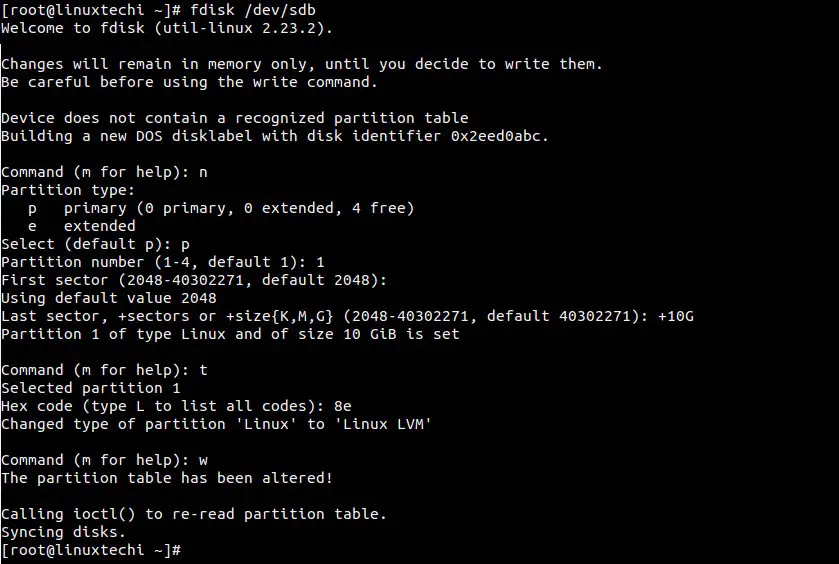
In the below example i have created 10GB partition on /dev/sdb and set “8e” as toggle id.
Create and Extend XFS filesystem based on LVM

XFS is a File system which is designed for high performance ,scalability and Capacity point of view. It is generally used where large amount data to be stored / used on the File system. Some of the awesome freeze features of xfs are xfs_freeze, snapshot, xfs_unfreeze. One of the limitation of XFS is that we can not shrink or reduce this file system.
XFS is the default file system on CentOS 7 and RHEL 7. In this post we will discuss how to create and extend xfs file system based on LVM in CentOS 7. I am assuming that a new disk is assigned to Linux box and i am going to perform below steps on CentOS 7.

Step:1 Create a partition using fdisk

In the below example i have created 10GB partition on /dev/sdb and set “8e” as toggle id.
fdisk_partition

Step:2 Create LVM components : pvcreate, vgcreate and lvcreate.

[root@linuxtechi ~]# pvcreate /dev/sdb1
 Physical volume "/dev/sdb1" successfully created
[root@linuxtechi ~]#

[root@linuxtechi ~]# vgcreate vg_xfs /dev/sdb1
 Volume group "vg_xfs" successfully created
[root@linuxtechi ~]#

[root@linuxtechi ~]# lvcreate -L +6G -n xfs_db vg_xfs
 Logical volume "xfs_db" created
[root@linuxtechi ~]#

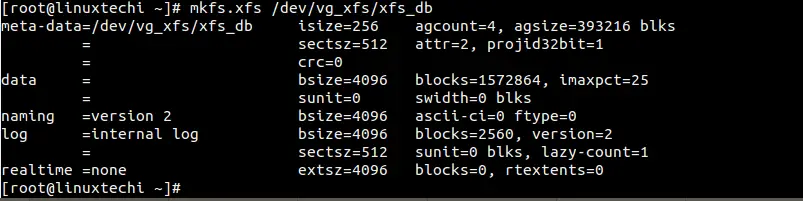
Step:3 Create XFS file system on lvm parition “/dev/vg_xfs/xfs_db”

[root@linuxtechi ~]# mkfs.xfs /dev/vg_xfs/xfs_db
create_xfs_filesystem

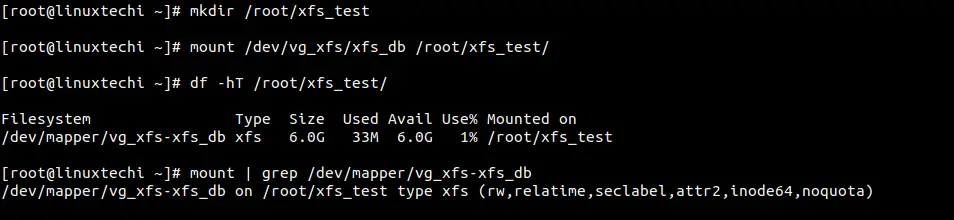
Step:4 Mount the xfs file system

Create a directory named as xfs_test under /root and mount it using mount command.
mount_xfs_file_system
For the permanent mounting , use /etc/fstab file.

Step:5 Extend the size of xfs file system

Check the whether free space is available in Volume group (vg_xfs) or not using below command :
[root@linuxtechi ~]# vgs vg_xfs 
 VG #PV #LV #SN Attr VSize VFree
 vg_xfs 1 1 0 wz--n- 10.00g 4.00g
[root@linuxtechi ~]#
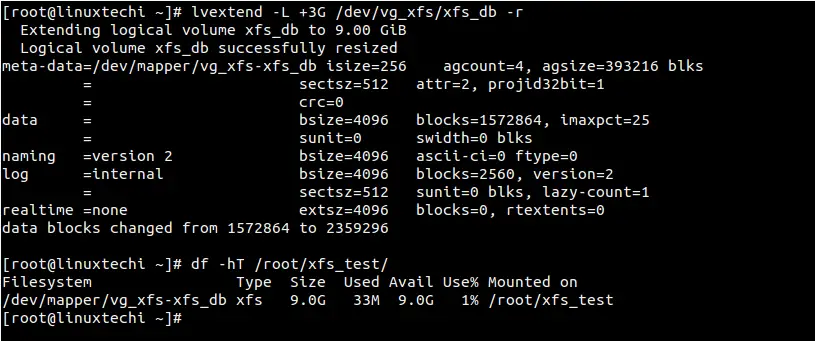
So we will extend the file system by 3GB using lvextend command with “-r” option
[root@linuxtechi ~]# lvextend -L +3G /dev/vg_xfs/xfs_db -r
lvextend_xfs
As we can see above that the size of “/dev/vg_xfs/xfs_db” has been extended from 6 GB to 9GB
Note : If xfs is not based on LVM , the use the xfs_growsfs command as shown below :
[root@linuxtechi ~]# xfs_growfs <Mount_Point> -D <Size>
The “-D size” option extend the file system to the specified size (expressed in file system blocks). Without the -D size option, xfs_growfs will extend the file system to the maximum size supported by the device.

Step:2 Create LVM components : pvcreate, vgcreate and lvcreate.

[root@linuxtechi ~]# pvcreate /dev/sdb1
 Physical volume "/dev/sdb1" successfully created
[root@linuxtechi ~]#

[root@linuxtechi ~]# vgcreate vg_xfs /dev/sdb1
 Volume group "vg_xfs" successfully created
[root@linuxtechi ~]#

[root@linuxtechi ~]# lvcreate -L +6G -n xfs_db vg_xfs
 Logical volume "xfs_db" created
[root@linuxtechi ~]#

Step:3 Create XFS file system on lvm parition “/dev/vg_xfs/xfs_db”

[root@linuxtechi ~]# mkfs.xfs /dev/vg_xfs/xfs_db
create_xfs_filesystem

Step:4 Mount the xfs file system

Create a directory named as xfs_test under /root and mount it using mount command.
mount_xfs_file_system
For the permanent mounting , use /etc/fstab file.

Step:5 Extend the size of xfs file system

Check the whether free space is available in Volume group (vg_xfs) or not using below command :
[root@linuxtechi ~]# vgs vg_xfs 
 VG #PV #LV #SN Attr VSize VFree
 vg_xfs 1 1 0 wz--n- 10.00g 4.00g
[root@linuxtechi ~]#
So we will extend the file system by 3GB using lvextend command with “-r” option
[root@linuxtechi ~]# lvextend -L +3G /dev/vg_xfs/xfs_db -r
lvextend_xfs
As we can see above that the size of “/dev/vg_xfs/xfs_db” has been extended from 6 GB to 9GB
Note : If xfs is not based on LVM , the use the xfs_growsfs command as shown below :
[root@linuxtechi ~]# xfs_growfs <Mount_Point> -D <Size>
The “-D size” option extend the file system to the specified size (expressed in file system blocks). Without the -D size option, xfs_growfs will extend the file system to the maximum size supported by the device.


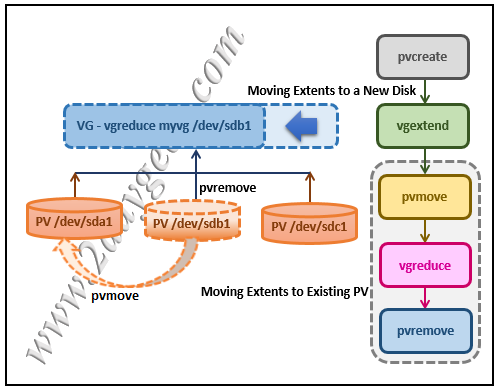
1) Moving Extents to Existing Physical Volumes

Use the pvs command to check if the desired physical volume (we plan to remove the “/dev/sdb1” disk in LVM) is used or not.

# pvs -o+pv_used

PV VG Fmt Attr PSize PFree Used
/dev/sda1 myvg lvm2 a- 75.00G 14.00G 61.00G
/dev/sdb1 myvg lvm2 a- 50.00G 45.00G 5.00G
/dev/sdc1 myvg lvm2 a- 17.15G 12.15G 5.00G

If this is used, check to see if there are enough free extents on the other physics volumes in the volume group.

If so, you can run the pvmove command on the device you want to remove. Extents will be distributed to other devices.

# pvmove /dev/sdb1

/dev/sdb1: Moved: 2.0%
…
/dev/sdb1: Moved: 79.2%
…
/dev/sdb1: Moved: 100.0%

When the pvmove command is complete. Re-use the pvs command to check whether the physics volume is free or not.

# pvs -o+pv_used

PV VG Fmt Attr PSize PFree Used
/dev/sda1 myvg lvm2 a- 75.00G 9.00G 66.00G
/dev/sdb1 myvg lvm2 a- 50.00G 50.00G 0
/dev/sdc1 myvg lvm2 a- 17.15G 12.15G 5.00G

If it’s free, use the vgreduce command to remove the physical volume /dev/sdb1 from the volume group.

# vgreduce myvg /dev/sdb1
Removed "/dev/sdb1" from volume group "myvg"

Finally, run the pvremove command to remove the disk from the LVM configuration. Now, the disk is completely removed from the LVM and can be used for other purposes.

# pvremove /dev/sdb1
Labels on physical volume "/dev/sdb1" successfully wiped.

2) Moving Extents to a New Disk

If you don’t have enough free extents on the other physics volumes in the volume group. Add new physical volume using the steps below.

Request new LUNs from the storage team. Once this is allocated, run the following commands to discover newly added LUNs or disks in Linux.

# ls /sys/class/scsi_host
host0
# echo "- - -" > /sys/class/scsi_host/host0/scan
# fdisk -l

Once the disk is detected in the OS, use the pvcreate command to create the physical volume.

# pvcreate /dev/sdd1
Physical volume "/dev/sdd1" successfully created

Use the following command to add new physical volume /dev/sdd1 to the existing volume group vg01.

# vgextend vg01 /dev/sdd1
Volume group "vg01" successfully extended

Now, use the pvs command to see the new disk “/dev/sdd1” that you have added.

# pvs -o+pv_used

PV VG Fmt Attr PSize PFree Used
/dev/sda1 myvg lvm2 a- 75.00G 14.00G 61.00G
/dev/sdb1 myvg lvm2 a- 50.00G 0 50.00G
/dev/sdc1 myvg lvm2 a- 17.15G 12.15G 5.00G
/dev/sdd1 myvg lvm2 a- 60.00G 60.00G 0

Use the pvmove command to move the data from /dev/sdb1 to /dev/sdd1.

# pvmove /dev/sdb1 /dev/sdd1

/dev/sdb1: Moved: 10.0%
…
/dev/sdb1: Moved: 79.7%
…
/dev/sdb1: Moved: 100.0%

After the data is moved to the new disk. Re-use the pvs command to check whether the physics volume is free.

# pvs -o+pv_used

PV VG Fmt Attr PSize PFree Used
/dev/sda1 myvg lvm2 a- 75.00G 14.00G 61.00G
/dev/sdb1 myvg lvm2 a- 50.00G 50.00G 0
/dev/sdc1 myvg lvm2 a- 17.15G 12.15G 5.00G
/dev/sdd1 myvg lvm2 a- 60.00G 10.00G 50.00G

If it’s free, use the vgreduce command to remove the physical volume /dev/sdb1 from the volume group.

# vgreduce myvg /dev/sdb1
Removed "/dev/sdb1" from volume group "myvg"

Finally, run the pvremove command to remove the disk from the LVM configuration. Now, the disk is completely removed from the LVM and can be used for other purposes.

# pvremove /dev/sdb1
Labels on physical volume "/dev/sdb1" successfully wiped.
 

Moving Extents to Existing Physical Volumes

In this example, the logical volume is distributed across four physical volumes in the volume group myvg.
# pvs -o+pv_used PV VG Fmt Attr PSize PFree Used /dev/sda1 myvg lvm2 a- 17.15G 12.15G 5.00G /dev/sdb1 myvg lvm2 a- 17.15G 12.15G 5.00G /dev/sdc1 myvg lvm2 a- 17.15G 12.15G 5.00G /dev/sdd1 myvg lvm2 a- 17.15G 2.15G 15.00G
This examples moves the extents off of /dev/sdb1 so that it can be removed from the volume group.
  1. If there are enough free extents on the other physical volumes in the volume group, you can execute the pvmove command on the device you want to remove with no other options and the extents will be distributed to the other devices.
    # pvmove /dev/sdb1
      /dev/sdb1: Moved: 2.0%
     ...
      /dev/sdb1: Moved: 79.2%
     ...
      /dev/sdb1: Moved: 100.0%
    
    After the pvmove command has finished executing, the distribution of extents is as follows:
    # pvs -o+pv_used
      PV         VG   Fmt  Attr PSize  PFree  Used
      /dev/sda1  myvg lvm2 a-   17.15G  7.15G 10.00G
      /dev/sdb1  myvg lvm2 a-   17.15G 17.15G     0
      /dev/sdc1  myvg lvm2 a-   17.15G 12.15G  5.00G
      /dev/sdd1  myvg lvm2 a-   17.15G  2.15G 15.00G
    
  2. Use the vgreduce command to remove the physical volume /dev/sdb1 from the volume group.
    # vgreduce myvg /dev/sdb1
      Removed "/dev/sdb1" from volume group "myvg"
    # pvs
      PV         VG   Fmt  Attr PSize  PFree
      /dev/sda1  myvg lvm2 a-   17.15G  7.15G
      /dev/sdb1       lvm2 --   17.15G 17.15G
      /dev/sdc1  myvg lvm2 a-   17.15G 12.15G
      /dev/sdd1  myvg lvm2 a-   17.15G  2.15G
    
The disk can now be physically removed or allocated to other users.

5.4.2. Moving Extents to a New Disk

In this example, the logical volume is distributed across three physical volumes in the volume group myvg as follows:
# pvs -o+pv_used
  PV         VG   Fmt  Attr PSize  PFree  Used
  /dev/sda1  myvg lvm2 a-   17.15G  7.15G 10.00G
  /dev/sdb1  myvg lvm2 a-   17.15G 15.15G  2.00G
  /dev/sdc1  myvg lvm2 a-   17.15G 15.15G  2.00G
This example procedure moves the extents of /dev/sdb1 to a new device, /dev/sdd1.
  1. Create a new physical volume from /dev/sdd1.
    # pvcreate /dev/sdd1
      Physical volume "/dev/sdd1" successfully created
    
  2. Add the new physical volume /dev/sdd1 to the existing volume group myvg.
    # vgextend myvg /dev/sdd1
      Volume group "myvg" successfully extended
    # pvs -o+pv_used
      PV         VG   Fmt  Attr PSize  PFree  Used
      /dev/sda1   myvg lvm2 a-   17.15G  7.15G 10.00G
      /dev/sdb1   myvg lvm2 a-   17.15G 15.15G  2.00G
      /dev/sdc1   myvg lvm2 a-   17.15G 15.15G  2.00G
      /dev/sdd1   myvg lvm2 a-   17.15G 17.15G     0
    
  3. Use the pvmove command to move the data from /dev/sdb1 to /dev/sdd1.
    # pvmove /dev/sdb1 /dev/sdd1
      /dev/sdb1: Moved: 10.0%
    ...
      /dev/sdb1: Moved: 79.7%
    ...
      /dev/sdb1: Moved: 100.0%
    
    # pvs -o+pv_used
      PV          VG   Fmt  Attr PSize  PFree  Used
      /dev/sda1   myvg lvm2 a-   17.15G  7.15G 10.00G
      /dev/sdb1   myvg lvm2 a-   17.15G 17.15G     0
      /dev/sdc1   myvg lvm2 a-   17.15G 15.15G  2.00G
      /dev/sdd1   myvg lvm2 a-   17.15G 15.15G  2.00G
    
  4. After you have moved the data off /dev/sdb1, you can remove it from the volume group.
    # vgreduce myvg /dev/sdb1
      Removed "/dev/sdb1" from volume group "myvg" 


    This article will serve solution for below questions :

  5. How to safely remove the disk from LVM
  6. How to remove the disk from VG online
  7. How to copy data from one disk to other at the physical level
  8. How to replace a faulty disk in LVM online
  9. How to move physical extents from one disk to another
  10. How to free up disk from VG to shrink VG size
  11. How to safely reduce VG

We have volume group named vg01 which has 20M logical volume created in it and mounted it on /mydata mount point. Check lsblk output below –

root@kerneltalks # lsblk
NAME         MAJ:MIN RM SIZE RO TYPE MOUNTPOINT
xvda         202:0    0  10G  0 disk
├─xvda1      202:1    0   1M  0 part
└─xvda2      202:2    0  10G  0 part /
xvdf         202:80   0   1G  0 disk
└─vg01-lvol1 253:0    0  20M  0 lvm  /mydata

Now, attach new disk of the same or bigger size of the disk /dev/xvdf. Identify the new disk on the system by using lsblk command again and comparing the output to the previous one.

root@kerneltalks # lsblk
NAME         MAJ:MIN RM SIZE RO TYPE MOUNTPOINT
xvda         202:0    0  10G  0 disk
├─xvda1      202:1    0   1M  0 part
└─xvda2      202:2    0  10G  0 part /
xvdf         202:80   0   1G  0 disk
└─vg01-lvol1 253:0    0  20M  0 lvm  /mydata
xvdg         202:96   0   1G  0 disk

You can see the new disk has been identified as /dev/xvdg. Now, we will add this disk to current VG vg01. This can be done using vgextend command. Obviously, before using it in LVM you need to run pvcreate on it.

root@kerneltalks # pvcreate /dev/xvdg
  Physical volume "/dev/xvdg" successfully created.
root@kerneltalks # vgextend vg01 /dev/xvdg
  Volume group "vg01" successfully extended

Now we have disk to be removed /dev/xvdf and new disk to be added /dev/xvdg in the same volume group vg01. You can verify it using pvs command

root@kerneltalks # pvs
  PV         VG   Fmt  Attr PSize    PFree
  /dev/xvdf  vg01 lvm2 a--  1020.00m 1000.00m
  /dev/xvdg  vg01 lvm2 a--  1020.00m 1020.00m

Observe the above output. Since we created a 20M mount point from disk /dev/xvdf it has 20M less free size. The new disk /dev/xvdg is completely free.

Now, we need to move physical extents from disk xvdf to xvdg. pvmove is the command used to achieve this. You just need to supply a disk name from where you need to move out PE. Command will move PE out of that disk and write them to all available disks in the same volume group. In our case, only one other disk is available to move PE.

root@kerneltalks # pvmove /dev/xvdf
  /dev/xvdf: Moved: 0.00%
  /dev/xvdf: Moved: 100.00%

Move progress is shown periodically. If due to any reason operation interrupted in between then moved PE will remain at destination disks and un-moved PEs will remain on the source disk. The operation can be resumed by issuing the same command again. It will then move the remaining PE out of the source disk.

You can even run it in background with nohup.

root@kerneltalks # pvmove /dev/xvdf 2>error.log >normal.log &amp;
[1] 1639

In the above command, it will run pvmove in the background. It will redirect normal console outputs in normal.log file under the current working directory whereas errors will be redirected and saved in error.log file in the current working directory.

Now if you check pvs output again, you will find all space on disk xvdf is free which means its not been used to store any data in that VG. This ensures you can remove the disk without any issues.

root@kerneltalks # pvs
  PV         VG   Fmt  Attr PSize    PFree
  /dev/xvdf  vg01 lvm2 a--  1020.00m 1020.00m
  /dev/xvdg  vg01 lvm2 a--  1020.00m 1000.00m

Before removing/detaching disk from the server, you need to remove it from LVM. You can do this by reducing VG and opting for that disk out.

root@kerneltalks # vgreduce vg01 /dev/xvdf
  Removed "/dev/xvdf" from volume group "vg01"

Now disk xvdf can be removed/detached from server safely.

Few useful switches of pvmove :

Verbose mode prints more detailed information on the operation. It can be invoked by using -v switch.

root@kerneltalks # pvmove -v /dev/xvdf
    Cluster mirror log daemon is not running.
    Wiping internal VG cache
    Wiping cache of LVM-capable devices
    Archiving volume group "vg01" metadata (seqno 17).
    Creating logical volume pvmove0
    activation/volume_list configuration setting not defined: Checking only host tags for vg01/lvol1.
    Moving 5 extents of logical volume vg01/lvol1.
    activation/volume_list configuration setting not defined: Checking only host tags for vg01/lvol1.
    Creating vg01-pvmove0
    Loading table for vg01-pvmove0 (253:1).
    Loading table for vg01-lvol1 (253:0).
    Suspending vg01-lvol1 (253:0) with device flush
    Resuming vg01-pvmove0 (253:1).
    Resuming vg01-lvol1 (253:0).
    Creating volume group backup "/etc/lvm/backup/vg01" (seqno 18).
    activation/volume_list configuration setting not defined: Checking only host tags for vg01/pvmove0.
    Checking progress before waiting every 15 seconds.
  /dev/xvdf: Moved: 0.00%
  /dev/xvdf: Moved: 100.00%
    Polling finished successfully.

The interval at which command updates the progress can be changed. -i switch followed by a number of seconds can be used to get updates from command on user-defined intervals on progress.

root@kerneltalks # pvmove -i 1 /dev/xvdf
⇠ Previous article 


In this example, we will be deleting “testlv” from the volume group “datavg”. The LV is mounted on the mount point /data01.

# df -hP | grep -i data01
/dev/mapper/datavg-testlv  976M  2.6M  907M   1% /data01
# lvs
  LV     VG     Attr       LSize  Pool Origin Data%  Meta%  Move Log Cpy%Sync Convert
  root   centos -wi-ao---- 17.47g
  swap   centos -wi-ao----  2.00g
  testlv datavg -wi-ao----  1.00g
# 1 root@arch-bill /home/bill # gdisk /dev/sdb                                                                                                                                                                                              :(
GPT fdisk (gdisk) version 0.8.10

Partition table scan:
  MBR: protective
  BSD: not present
  APM: not present
  GPT: present

Found valid GPT with protective MBR; using GPT.

Command (? for help): t
Partition number (1-6): 2
Current type is 'Microsoft basic data'
Hex code or GUID (L to show codes, Enter = 8300): 
Changed type of partition to 'Linux filesystem'

Command (? for help): t
Partition number (1-6): 3
Current type is 'Microsoft basic data'
Hex code or GUID (L to show codes, Enter = 8300): 
Changed type of partition to 'Linux filesystem'

Command (? for help): t
Partition number (1-6): 4
Current type is 'Microsoft basic data'
Hex code or GUID (L to show codes, Enter = 8300): 
Changed type of partition to 'Linux filesystem'

Command (? for help): t
Partition number (1-6): 6
Current type is 'Microsoft basic data'
Hex code or GUID (L to show codes, Enter = 8300): 
Changed type of partition to 'Linux filesystem'

Command (? for help): p
Disk /dev/sdb: 3907029168 sectors, 1.8 TiB
Logical sector size: 512 bytes
Disk identifier (GUID): 0645408C-0374-4357-8663-D2A3512E07BD
Partition table holds up to 128 entries
First usable sector is 34, last usable sector is 3907029134
Partitions will be aligned on 2048-sector boundaries
Total free space is 4204653 sectors (2.0 GiB)

Number  Start (sector)    End (sector)  Size       Code  Name
   1            2048            6143   2.0 MiB     EF02  
   2            8192         8396799   4.0 GiB     8300  
   3         8398848        41953279   16.0 GiB    8300  
   4        41955328       167786495   60.0 GiB    8300  
   6       167788544      3902834687   1.7 TiB     8300  

Command (? for help): w

Final checks complete. About to write GPT data. THIS WILL OVERWRITE EXISTING
PARTITIONS!!

Do you want to proceed? (Y/N): Y
OK; writing new GUID partition table (GPT) to /dev/sdb.
The operation has completed successfully.
1 root@arch-bill /home/bill # fdisk -l                                                                                                                                                                                                    :(

Disk /dev/sdb: 1.8 TiB, 2000398934016 bytes, 3907029168 sectors
Units: sectors of 1 * 512 = 512 bytes
Sector size (logical/physical): 512 bytes / 4096 bytes
I/O size (minimum/optimal): 4096 bytes / 4096 bytes
Disklabel type: gpt
Disk identifier: 0645408C-0374-4357-8663-D2A3512E07BD

Device           Start          End   Size Type
/dev/sdb1         2048         6143     2M BIOS boot partition
/dev/sdb2         8192      8396799     4G Linux filesystem
/dev/sdb3      8398848     41953279    16G Linux filesystem
/dev/sdb4     41955328    167786495    60G Linux filesystem
/dev/sdb6    167788544   3902834687   1.8T Linux filesystem


Disk /dev/sdc: 298.1 GiB, 320072933376 bytes, 625142448 sectors
Units: sectors of 1 * 512 = 512 bytes
Sector size (logical/physical): 512 bytes / 512 bytes
I/O size (minimum/optimal): 512 bytes / 512 bytes
Disklabel type: gpt
Disk identifier: 5607E1F7-1A96-4EF5-A353-29BE91873431

Device           Start          End   Size Type
/dev/sdc1         2048      6293503     3G Linux swap
/dev/sdc2      6295552    618600447   292G Microsoft basic data


Disk /dev/sda: 931.5 GiB, 1000204886016 bytes, 1953525168 sectors
Units: sectors of 1 * 512 = 512 bytes
Sector size (logical/physical): 512 bytes / 4096 bytes
I/O size (minimum/optimal): 4096 bytes / 4096 bytes
Disklabel type: gpt
Disk identifier: C3E095E9-90D9-4BFA-A97F-5D74E64FC4A4

Device           Start          End   Size Type
/dev/sda1         8192     32776191  15.6G Microsoft basic data
/dev/sda2     32778240   1953509375 915.9G Microsoft basic data
/dev/sda3         2048         6143     2M BIOS boot partition

root@arch-bill /home/bill # 

1. Delete the entry of the mount point from the /etc/fstab :

# cat /etc/fstab
...
/dev/mapper/datavg-testlv            /data01              ext4    defaults        0 0
...

2. Unmount the mount point :

# umount /data01

3. Disable lvm :

# lvchange -an /dev/datavg/testlv

4. Delete lvm volume :

# lvremove /dev/datavg/testlv

5. Disable volume group :

# vgchange -an datavg

6. Delete volume group :

# vgremove datavg

7. Delete physical Volumes being used for the volume group “datavg” :

# pvremove /dev/sdb  /dev/sdc
      =============
root volume extended in linux
===============
 

Process summary

The process is straightforward. Attach the new storage to the system. Next, create a new Physical Volume (PV) from that storage. Add the PV to the Volume Group (VG) and then extend the Logical Volume (LV).

Look at the picture below. The red line mark shows the original size of the root mount point. The xvdc disk is the new disk attached to it. Extend the root partition to make it 60G in size.

Image
lsblk command displays volume sizes
Figure 1: Use the lsblk command to display volume information.

[ Want to test your sysadmin skills? Take a skills assessment today. ]

Create a Physical Volume

Image
pvcreate command to create a new physical volume
Use the pvcreate command to designate a disk as a PV.
[root@redhat-sysadmin ~]# pvcreate /dev/xvdc
  Physical volume "/dev/xvdc" successfully created.

When you attach the new storage /dev/xvdc, you need to use the pvcreate command in order for the disk to be initialized and be seen by the Logical Volume Manager (LVM).

[ You might also like: Creating and managing partitions in Linux with parted ]

Identify the Volume Group

Next, you need to identify the Volume Group (VG) to which you are extending the new disk with the vgs command. Mine is called centos, and that's the only VG available currently on my LVM.

Image
vgs command displays volume group information
Figure 3: Use the vgs command to display Volume Group information.

Extend the Volume Group

The vgextend command allows you to add one or more initialized Physical Volumes to an existing VG to extend its size.

As you can see, you want to extend the centos Volume Group.

Image
vgextend command
Figure 4: The vgextend command adds capacity to the VG.

After extending it, type the vgs or vgdisplay commands for a more detailed overview of the VG.

The vgs command shows only the VG in with a few lines.

Image
vgs command displays volume group information
Figure 5: Use the vgs command to display VG information.

The vgdisplay shows all the VGs in the LVM and displays the complete information about them.

Image
vgdisplay command displays volume group information
Figure 6: Use the vgdisplay command to display VG information.

As you can see from the image above, marked with red, you have 10GB free. You can decide to extend all or some amount of storage size to it.

Identify the Logical Volume

The lvs or lvdisplay command shows the Logical Volume associated with a Volume Group. Use the lvs command, and the Logical Volume you're trying to extend is the root, which belongs to the centos VG. As you can see above, you've already extended the VG. Next, extend the Logical Volume.

Image
lvs command displays logical volume information
Figure 7: Use the lvs command to display LV information.

Extend the Logical Volume

Extend the LV with the lvextend command. The lvextend command allows you to extend the size of the Logical Volume from the Volume Group.

Image
lvextend command displays logical volume information
Figure 8: Use the lvextend command to extend the LV.
[root@redhat-sysadmin ~]# lvextend -l +100%FREE /dev/centos/root.

Extend the filesystem

You need to confirm the filesystem type you're using, Red Hat uses the XFS filesystem, but you can check the filesystem with lsblk -f or df -Th.

Resize the filesystem on the Logical Volume after it has been extended to show the changes. Resize the XFS filesystem by using the xfs_growfs command.

Image
xfs_grow command extends the XFS filesystem
Figure 9: Use the xfs_growfs command to grow the filesystem on the newly extended LV.

Finally, verify the size of your extended partition.

Image
df -h command displays storage capacity
Figure 10: Use the df -h command to display storage information.

[ Free online course: Red Hat Enterprise Linux technical overview. ] 

Saturday, 4 January 2020

Scanning FC-LUN's in Redhat Linux

Scanning FC-LUN’s in Redhat Linux


/usr/bin/rescan-scsi-bus.sh --forcerescan
  cat /sys/class/fc_host/host1/port_name
  cat /sys/class/fc_host/host2/port_name
  multipath -ll
  mpathconf --enable --with_multipathd y
  mpathconf --enable
  multipath -ll
  /usr/bin/rescan-scsi-bus.sh --forcerescan
  multipath -ll
  df -h
  lsblk
  lsblk -f
  multipath -ll


...........................
1.First, find out how many disks are visible in “fdisk -l” .
# fdisk -l 2>/dev/null | egrep '^Disk' | egrep -v 'dm-' | wc -l
2.Find out how many host bus adapter configured in the Linux box.you can use “systool -fc_host -v” to verify available FC in the system.
# ls /sys/class/fc_host
host0  host1
In this case,you need to scan host0 & host1 HBA.


3.If the system virtual memory is too low ,then do not proceed further.If you have enough free virtual memory,then you can proceed with below command to scan new LUNS.
# echo "1" > /sys/class/fc_host/host0/issue_lip
# echo "- - -" > /sys/class/scsi_host/host0/scan
# echo "1" > /sys/class/fc_host/host1/issue_lip
# echo "- - -" > /sys/class/scsi_host/host1/scan
Note: You need to monitor the “issue_lip” in /var/log/messages to determine when the scan will complete.This operation is an asynchronous operation.

You can also use rescan-scsi-bus.sh script to detect new LUNS.
# yum install sg3_utils
# ./rescan-scsi-bus.sh

4. Verify if the new LUN is visible or not by counting the available disks.
# fdisk -l 2>/dev/null | egrep '^Disk' | egrep -v 'dm-' | wc -l
If any new LUNS added , then you can see more count is more then before scanning the LUNS.


Scanning SCSI DISKS in Redhat Linux

1. Finding the existing disk from fdisk.
[root@mylinz1 ~]# fdisk -l |egrep '^Disk' |egrep -v 'dm-'
Disk /dev/sda: 21.5 GB, 21474836480 bytes

2. Find out how many SCSI controller configured.
[root@mylinz1 ~]# ls /sys/class/scsi_host/host
host0 host1 host2
In this case, you need to scan host0,host1 & host2.

3. Scan the SCSI disks using below command.
[root@mylinz1 ~]# echo "- - -" > /sys/class/scsi_host/host0/scan
[root@mylinz1 ~]# echo "- - -" > /sys/class/scsi_host/host1/scan
[root@mylinz1 ~]# echo "- - -" > /sys/class/scsi_host/host2/scan

4. Verify if the new disks are visible or not.
[root@mylinz1 ~]# fdisk -l |egrep '^Disk' |egrep -v 'dm-'
Disk /dev/sda: 21.5 GB, 21474836480 bytes
Disk /dev/sdb: 1073 MB, 1073741824 bytes
Disk /dev/sdc: 1073 MB, 1073741824 bytes


#multipath -ll
oradata03 (360050768018085dc7000000000000xxx) dm-8 IBM ,2145
size=500G features='1 queue_if_no_path' hwhandler='0' wp=rw
|-+- policy='service-time 0' prio=50 status=active
| |- 1:0:0:4 sde 8:64 active ready running
| `- 8:0:0:4 sdu 65:64 active ready running
`-+- policy='service-time 0' prio=10 status=enabled
|- 1:0:1:4 sdm 8:192 active ready running
`- 8:0:1:4 sdac 65:192 active ready running

How to remove LUN from Live Server ?
Step 1: Unmounting  the LUN :

First, we need to unmount the file system we are about to release.

umount /dev/mapper/oradata03

Once unmount the filesystem  now lets remove the related  Logical volume, Volume group and Physical volume.

# fdisk -l /dev/mapper/oradata03

Disk /dev/mapper/oradata03: 536.9 GB, 536870912000 bytes, 1048576000 sectors
Units = sectors of 1 * 512 = 512 bytes
Sector size (logical/physical): 512 bytes / 512 bytes
I/O size (minimum/optimal): 32768 bytes / 32768 bytes
Disk label type: dos
Disk identifier: 0x77e6d4cb

Device Boot Start End Blocks Id System
/dev/mapper/oradata03p1 2048 1048575999 524286976 83 Linux

Now with fdisk you can delete the  partitions .

#fdisk /dev/mapper/oradata03
Welcome to fdisk (util-linux 2.23.2).

Changes will remain in memory only, until you decide to write them.
Be careful before using the write command.


Command (m for help): m
Command action
a toggle a bootable flag
b edit bsd disklabel
c toggle the dos compatibility flag
d delete a partition
g create a new empty GPT partition table
G create an IRIX (SGI) partition table
l list known partition types
m print this menu
n add a new partition
o create a new empty DOS partition table
p print the partition table
q quit without saving changes
s create a new empty Sun disklabel
t change a partition's system id
u change display/entry units
v verify the partition table
w write table to disk and exit
x extra functionality (experts only)

Command (m for help): p

Disk /dev/mapper/oradata03: 536.9 GB, 536870912000 bytes, 1048576000 sectors
Units = sectors of 1 * 512 = 512 bytes
Sector size (logical/physical): 512 bytes / 512 bytes
I/O size (minimum/optimal): 32768 bytes / 32768 bytes
Disk label type: dos
Disk identifier: 0x77e6d4cb

Device Boot Start End Blocks Id System
/dev/mapper/oradata03p1 2048 1048575999 524286976 83 Linux

Delete the Partition oradata03p1

Command (m for help): d
Selected partition 1
Partition 1 is deleted

Command (m for help): w
The partition table has been altered!

Calling ioctl() to re-read partition table.

WARNING: Re-reading the partition table failed with error 22: Invalid argument.
The kernel still uses the old table. The new table will be used at
the next reboot or after you run partprobe(8) or kpartx(8)
Syncing disks.
# partprobe /dev/mapper/oradata03


Now lets  clear the Alias information from multipath.conf.
Step 2: Removing disks from the multipath config

Delete  entries from multipath configuration file  under alias and blacklist exceptions.

# vi /etc/multipath.conf

multipaths {
multipath {
wwid 360050768018085dc7000000000000xxx
alias oradata03
}
}

blacklist_exceptions {
        
        wwid "360050768018085dc7000000000000xx"
       

}


Ahead we need to remove from the wwids file by editing or using the “multipath -w” command.

# vi /etc/multipath/wwids
# multipath -w 360050768018085dc7000000000000xxx
wwid '360050768018085dc7000000000000xxx' removed

Explain -w options ( multipath -help) :

-w remove a device from the wwids file

Flush the DM device name using -f option.  from above command my dm was  dm-8

# multipath -ll
# multipath -f dm-8e

Steps 3: Removing SAN paths .

Remove the device paths , from the  first command of multipath -ll   you see  that   my  devices paths  are   sde sdu  sdm sdac

Remove the devices got from “multipath -ll” or can find the device name from below location.

# ls -lthr /dev/disk/by-id/*xxx  ( to  get  more  information) 
# echo 1 > /sys/block/sde/device/delete
# echo 1 > /sys/block/sdu/device/delete
# echo 1 > /sys/block/sdm/device/delete
# echo 1 > /sys/block/sdac/device/delete

This will remove the Storage device (LUN) from RHEL, CentOS, Oracle Servers and variants.


Sunday, 29 December 2019

Expand zpool online Solaris

Expand zpool online Solaris

09 Aug
I have Solaris 11.1 runnning on SPARC T4-2, connected to SAN using powerpath. I want to expand an existing zpool without any downtime and loss of data. Below is what I did to achieve it.
1. Check the zpool details.
root@falcon-db:~# zpool list datapool
NAME SIZE ALLOC FREE CAP DEDUP HEALTH ALTROOT
datapool 9.94G 126K 9.94G 0% 1.00x ONLINE –
root@falcon-db:~#
2. Expand the LUN from storage side.
3. Run cfgadm -al and format. Select the expanded disk.(check cylinder size before expanding)
97. emcpower8a <DGC-VRAID-0532 cyl 32766 alt 2 hd 64 sec 10>
/pseudo/emcp@8
Specify disk (enter its number): 97
selecting emcpower8a
[disk formatted]
Note: detected additional allowable expansion storage space that can be
added to current SMI label’s computed capacity.
Select to adjust the label capacity.
4. Select expand option and select the slice mounted to expand.
partition> e
Expansion of label cannot be undone; continue (y/n) ? y
The expanded capacity was added to the disk label and “s2”.
Disk label was written to disk.
partition> 0
Part Tag Flag Cylinders Size Blocks
0 unassigned wm 0 – 32765 10.00GB (32766/0/0) 20970240
Enter partition id tag[unassigned]:
Enter partition permission flags[wm]:
Enter new starting cyl[0]:
Enter partition size[20970240b, 32766c, 32765e, 10239.38mb, 10.00gb]: $
partition> p
Current partition table (unnamed):
Total disk cylinders available: 39319 + 2 (reserved cylinders)
Part Tag Flag Cylinders Size Blocks
0 unassigned wm 0 – 39318 12.00GB (39319/0/0) 25164160
1 unassigned wu 0 0 (0/0/0) 0
2 backup wu 0 – 39318 12.00GB (39319/0/0) 25164160
partition> l
Ready to label disk, continue? y
partition>
Cylinder size after expansion of disk
97. emcpower8a <DGC-VRAID-0532 cyl 39319 alt 2 hd 64 sec 10>
/pseudo/emcp@8
5. Set the autoexpand option to on and the pool is expanded to new size.
root@falcon-db:~# zpool list datapool
NAME SIZE ALLOC FREE CAP DEDUP HEALTH ALTROOT
datapool 9.94G 89.5K 9.94G 0% 1.00x ONLINE –
root@falcon-db:~#
root@falcon-db:~# zpool get autoexpand datapool
NAME PROPERTY VALUE SOURCE
datapool autoexpand off local
root@falcon-db:~# zpool set autoexpand=on datapool
root@falcon-db:~#
root@falcon-db:~#
root@falcon-db:~# zpool list datapool
NAME SIZE ALLOC FREE CAP DEDUP HEALTH ALTROOT
datapool 11.9G 136K 11.9G 0% 1.00x ONLINE –
root@falcon-db:~#

Tuesday, 24 December 2019

local repository for solaris

How to Copy a Repository From a zip File

  1. Create a ZFS file system for the new repository. Create the repository in a shared location. Set atime to off when you create the repository file system. Consider setting the compression property. See Best Practices for Creating and Using Local IPS Package Repositories.
    $ zfs create -o atime=off rpool/VARSHARE/pkgrepos
    $ zfs create rpool/VARSHARE/pkgrepos/solaris
    $ zfs get atime rpool/VARSHARE/pkgrepos/solaris
    NAME                             PROPERTY  VALUE  SOURCE
    rpool/VARSHARE/pkgrepos/solaris  atime     off    inherited from rpool/VARSHARE/pkgrepos
  2. Get the package repository files. Download the Oracle Solaris IPS package repository files (*repo*.zip) from the same location where you downloaded the system installation image. In addition to the repository files, download the install-repo.ksh script and the README and checksum .txt files.
    $ ls
    install-repo.ksh           sol-11_3-ga-repo-3of4.zip
    README-zipped-repo.txt     sol-11_3-ga-repo-4of4.zip
    sol-11_3-ga-repo-1of4.zip  sol-11_3-ga-repo.txt
    sol-11_3-ga-repo-2of4.zip
    On the Oracle Technology Network (OTN) site, you can download the install-repo.ksh script and the README and digest .txt files directly. On the My Oracle Support (MOS) and the Oracle Software Delivery Cloud (OSDC) sites, the install-repo.ksh script and the README and checksum .txt files are part of the Repository Installation Guide. For example, in the IPS Repository column of an SRU Index on MOS, select the Installation Guide document. A new page displays that contains the following buttons:
    • Download. Select this button to retrieve the Repository Installation Guide .zip file. The Repository Installation Guide file contains the following files:
      • The install-repo.ksh script.
      • The README-zipped-repo.txt README file that explains how to use the install-repo.ksh script.
      • The digest.txt checksums file for the repository files (*repo*.zip).
      • Text and HTML versions of a README file that describes this particular SRU.
    • View Readme. Select this button to display the README file that describes this particular SRU.
    • View Digest. Select this button to pop up a new window that displays the SHA-1 and MD5 checksums for the Repository Installation Guide .zip file.
  3. Make sure the script file is executable.
    $ chmod +x install-repo.ksh
  4. Run the repository installation script. The repository installation script, install-repo.ksh, uncompresses each repository file (*repo*.zip) into the specified directory.
    The install-repo.ksh script optionally performs the following additional tasks:
    • Verifies checksums of the repository files.
      If you do not specify the -c option to verify checksums, verify the checksums manually before you run the repository installation script. Run the following digest command, and compare the output with the appropriate checksum from the digest.txt file:
      $ digest -v -a sha256 *repo*.zip
    • Adds the repository content to existing content if the specified destination already contains a repository.
    • Verifies the final repository.
      If you do not specify the -v option to verify the repository, use the info, list, and verify subcommands of the pkgrepo command to verify the repository after you run the repository installation script.
    • Creates an ISO image file for mounting and distribution.
      If you use the -I option to create an .iso file, the .iso file and the README file that explains how to use the .iso file are in the specified destination directory (-d).
  5. Verify the repository content. If you did not specify the -v option in the previous step, use the info, list, and verify subcommands of the pkgrepo command to check that the repository has been copied correctly. If the pkgrepo verify command reports errors, try using the pkgrepo fix command to fix the errors. See the pkgrepo(1) man page for more information.
  6. Snapshot the new repository.
    $ zfs snapshot rpool/VARSHARE/pkgrepos/solaris@sol-11_3_0
Example 1  Creating a New Repository From a zip File In this example, no repository exists until the .zip files are unpacked. The script can take the following options:
-s
Optional. Specifies the full path to the directory where the *repo*.zip files are located. Default: The current directory.
-d
Required. Specifies the full path to the directory where you want the repository.
-i
Optional. Specifies the files to use to populate this repository. The source directory could contain multiple sets of *repo*.zip files. Default: The newest image available in the source directory.
-c
Optional. Compares the checksums of the *repo*.zip files with the checksums in the specified file. If you specify -c with no argument, the default file used is the digest.txt file for the -i image in the source directory.
-v
Optional. Verifies the final repository.
-I
Optional. Creates an ISO image of the repository in the source directory. Also leaves a mkiso.log log file in the source directory.
-h
Optional. Displays a usage message.
$ ./install-repo.ksh -d /var/share/pkgrepos/solaris -c -v -I
Comparing digests of downloaded files...done. Digests match.
Uncompressing sol-11_3-ga-repo-1of4.zip...done.
Uncompressing sol-11_3-ga-repo-2of4.zip...done.
Uncompressing sol-11_3-ga-repo-3of4.zip...done.
Uncompressing sol-11_3-ga-repo-4of4.zip...done.
Repository can be found in /var/share/pkgrepos/solaris.
Initiating repository verification.
Building ISO image...done.
ISO image can be found at:
/tank/downloads/sol-11_3-ga-repo.iso
Instructions for using the ISO image can be found at:
/var/share/pkgrepos/solaris/README-repo-iso.txt  
$ ls /var/share/pkgrepos/solaris
COPYRIGHT         NOTICES           pkg5.repository   publisher         README-iso.txt
The repository rebuild and verification can take some time, but the repository content is retrievable after you get the "Repository can be found in" message.
If you receive a message that the repository verification could not be done, ensure that Oracle Solaris 11.1.7 or later is installed.
Example 2  Adding to an Existing Repository From a zip File In this example, the content of the repository zip files is added to the content in an existing package repository.
$ pkgrepo -s /var/share/pkgrepos/solaris info
PUBLISHER PACKAGES STATUS           UPDATED
solaris   4764     online           2014-03-18T05:30:57.221021Z
$ ./install-repo.ksh -d /var/share/pkgrepos/solaris -c -v -I
IPS repository exists at destination /var/share/pkgrepos/solaris
Current version: 0.175.2.0.0.35.0
Do you want to add to this repository? (y/n) y
Comparing digests of downloaded files...done. Digests match.
Uncompressing sol-11_3-ga-repo-1of4.zip...done.
Uncompressing sol-11_3-ga-repo-2of4.zip...done.
Uncompressing sol-11_3-ga-repo-3of4.zip...done.
Uncompressing sol-11_3-ga-repo-4of4.zip...done.
Repository can be found in /var/share/pkgrepos/solaris.
Initiating repository rebuild.
Initiating repository verification.
Building ISO image...done.
ISO image can be found at:
/tank/downloads/sol-11_3-ga-repo.iso
Instructions for using the ISO image can be found at:
/var/share/pkgrepos/solaris/README-repo-iso.txt
$ pkgrepo -s /var/share/pkgrepos/solaris info
PUBLISHER PACKAGES STATUS           UPDATED
solaris   4768     online           2016-06-02T18:11:55.640930Z

Sunday, 22 December 2019

Start/Stop OHS Instance

Start/Stop OHS Instance

Start and stop scripts for the node manager and OHS instance are created under the domain home. The typical start and stop sequences are shown below.
# Start
nohup $DOMAIN_HOME/bin/startNodeManager.sh > /dev/null 2>&1 &
$DOMAIN_HOME/bin/startComponent.sh ohs1

#Stop
$DOMAIN_HOME/bin/stopComponent.sh ohs1
$DOMAIN_HOME/bin/stopNodeManager.sh
It should now be possible to start and stop the OHS instance with the scripts created earlier in the setup section.
~/scripts/start_all.sh
~/scripts/stop_all.sh

Important Files

There are a number of important config files, but the ones you are most likely to visit are the following.
$INSTANCE_HOME/httpd.conf
$INSTANCE_HOME/ssl.conf
$INSTANCE_HOME/mod_wl_ohs.conf
You can diagnose issues by checking the log files under the "$DOMAIN_HOME/servers/ohs1/logs/" directory.
$DOMAIN_HOME/servers/ohs1/logs/admin_log
$DOMAIN_HOME/servers/ohs1/logs/access_log
$DOMAIN_HOME/servers/ohs1/logs/ohs1.log

Wednesday, 18 December 2019

route config for solaris11

Configuring Persistent Routes

Because the /etc/defaultrouter file is deprecated in Oracle Solaris 11, you can no longer manage routes (default or otherwise) by using this file. Using the route command is the only way that you can manually add a route to a system. To make the changes persist across reboots, use the –p option with the route command.
# route -p add default ip-address
For example, you would add a route to network 203.0.113.0, which has its gateway as the border router, as follows:
# route -p add -net 203.0.113.0/24 -gateway 203.0.113.150
add net 203.0.113.0: gateway 203.0.113.150
View routes that were created by the using the previous command as follows:
# route -p show
Also, note that after an installation, you can no longer determine a system's default route by checking the /etc/defaultrouter file. To display the currently active routes on a system, use the netstat command with the following options:
# netstat -rn

Sunday, 1 December 2019

partition find for linux

Find partition for lunix
================
 lsblk -io KNAME, TYPE, SIZE, MODEl
 fdisk -l
  975  df -kh
  976  fdisk -l
  977  lsblk -io KNAME, TYPE, SIZE, MODEl
  978  lsblk -io NAME, TYPE, SIZE, MODEl
  979  lsblk -io  TYPE, SIZE, MODEl
  980  lsblk -io
  981  lsblk -all
  982  lsblk -io NAME, SIZE, TYPE,
  983  lsblk -io NAME SIZE TYPE MOUNTPOINT
  984  lsblk -al NAME SIZE TYPE MOUNTPOINT
  985  lsblk -all
  986  lshw -class disk
  987  lshw  disk
  988  lshw
  989  ls
  990  hwinfo --disk
============
  lsblk -o name,mountpoint

 output result:
lsblk -o name,mountpoint
NAME                 MOUNTPOINT
sda
├─sda1               /boot
├─sda2               /tmp
├─sda3               /usr
├─sda4
├─sda5               [SWAP]
├─sda6               /var
└─sda7               /
sdb
├─sdb1
└─mpathh (dm-3)
  └─mpathhp1 (dm-6)  /u01
sdc
├─sdc1
└─mpathg (dm-1)
  └─mpathgp1 (dm-4)  /u03
sdd
├─sdd1
└─mpathh (dm-3)
  └─mpathhp1 (dm-6)  /u01
sde
├─sde1
└─mpathg (dm-1)
  └─mpathgp1 (dm-4)  /u03
sdf
├─sdf1
└─mpathf (dm-0)
  └─mpathfp1 (dm-2)  /u02
sdg
├─sdg1
└─mpathi (dm-5)
  └─mpathip1 (dm-7)  /u04
sdh
├─sdh1
└─mpathf (dm-0)
  └─mpathfp1 (dm-2)  /u02
sdi
├─sdi1
└─mpathi (dm-5)
  └─mpathip1 (dm-7)  /u04
sdj
├─sdj1
└─mpathh (dm-3)
  └─mpathhp1 (dm-6)  /u01
sdk
├─sdk1
└─mpathg (dm-1)
  └─mpathgp1 (dm-4)  /u03
sdl
├─sdl1
└─mpathh (dm-3)
  └─mpathhp1 (dm-6)  /u01
sdm
├─sdm1
└─mpathg (dm-1)
  └─mpathgp1 (dm-4)  /u03
sdn
├─sdn1
└─mpathf (dm-0)
  └─mpathfp1 (dm-2)  /u02
sdo
├─sdo1
└─mpathi (dm-5)
  └─mpathip1 (dm-7)  /u04
sdp
├─sdp1
└─mpathf (dm-0)
  └─mpathfp1 (dm-2)  /u02
sdq
├─sdq1
└─mpathi (dm-5)
  └─mpathip1 (dm-7)  /u04
sdr
├─sdr1
└─mpathh (dm-3)
  └─mpathhp1 (dm-6)  /u01
sds
├─sds1
└─mpathg (dm-1)
  └─mpathgp1 (dm-4)  /u03
sdt
├─sdt1
└─mpathh (dm-3)
  └─mpathhp1 (dm-6)  /u01
sdu
├─sdu1
└─mpathg (dm-1)
  └─mpathgp1 (dm-4)  /u03
sdv
├─sdv1
└─mpathf (dm-0)
  └─mpathfp1 (dm-2)  /u02
sdw
├─sdw1
└─mpathi (dm-5)
  └─mpathip1 (dm-7)  /u04
sdx
├─sdx1
└─mpathf (dm-0)
  └─mpathfp1 (dm-2)  /u02
sdy
├─sdy1
└─mpathi (dm-5)
  └─mpathip1 (dm-7)  /u04
sdz
├─sdz1
└─mpathh (dm-3)
  └─mpathhp1 (dm-6)  /u01
sr0
sdaa
├─sdaa1
└─mpathg (dm-1)
  └─mpathgp1 (dm-4)  /u03
sdab
├─sdab1
└─mpathh (dm-3)
  └─mpathhp1 (dm-6)  /u01
sdac
├─sdac1
└─mpathg (dm-1)
  └─mpathgp1 (dm-4)  /u03
sdad
├─sdad1
└─mpathf (dm-0)
  └─mpathfp1 (dm-2)  /u02
sdae
├─sdae1
└─mpathi (dm-5)
  └─mpathip1 (dm-7)  /u04
sdaf
├─sdaf1
└─mpathf (dm-0)
  └─mpathfp1 (dm-2)  /u02
sdag
├─sdag1
└─mpathi (dm-5)
  └─mpathip1 (dm-7)  /u04
sdah
├─sdah1
└─mpathj (dm-8)
  └─mpathjp1 (dm-10) /u05
sdai
├─sdai1
└─mpathj (dm-8)
  └─mpathjp1 (dm-10) /u05
sdaj
├─sdaj1
└─mpathk (dm-9)
  └─mpathkp1 (dm-11) /u06
sdak
├─sdak1
└─mpathk (dm-9)
  └─mpathkp1 (dm-11) /u06
sdal
├─sdal1
└─mpathj (dm-8)
  └─mpathjp1 (dm-10) /u05
sdam
├─sdam1
└─mpathj (dm-8)
  └─mpathjp1 (dm-10) /u05
sdbb
├─sdbb1
└─mpathl (dm-12)
  └─mpathlp1 (dm-14) /u07
sdan
├─sdan1
└─mpathk (dm-9)
  └─mpathkp1 (dm-11) /u06
sdbc
├─sdbc1
└─mpathl (dm-12)
  └─mpathlp1 (dm-14) /u07
sdao
├─sdao1
└─mpathk (dm-9)
  └─mpathkp1 (dm-11) /u06
sdap
├─sdap1
└─mpathj (dm-8)
  └─mpathjp1 (dm-10) /u05
sdbf
├─sdbf1
└─mpathl (dm-12)
  └─mpathlp1 (dm-14) /u07
sdaq
├─sdaq1
└─mpathj (dm-8)
  └─mpathjp1 (dm-10) /u05
sdbg
├─sdbg1
└─mpathl (dm-12)
  └─mpathlp1 (dm-14) /u07
sdar
├─sdar1
└─mpathk (dm-9)
  └─mpathkp1 (dm-11) /u06
sdas
├─sdas1
└─mpathk (dm-9)
  └─mpathkp1 (dm-11) /u06
sdat
├─sdat1
└─mpathj (dm-8)
  └─mpathjp1 (dm-10) /u05
sdbj
├─sdbj1
└─mpathl (dm-12)
  └─mpathlp1 (dm-14) /u07
sdau
├─sdau1
└─mpathj (dm-8)
  └─mpathjp1 (dm-10) /u05
sdbk
├─sdbk1
└─mpathl (dm-12)
  └─mpathlp1 (dm-14) /u07
sdav
├─sdav1
└─mpathk (dm-9)
  └─mpathkp1 (dm-11) /u06
sdca
├─sdca1
└─mpatho (dm-18)
  └─mpathop1 (dm-19)
sdaw
├─sdaw1
└─mpathk (dm-9)
  └─mpathkp1 (dm-11) /u06
sdcb
├─sdcb1
└─mpatho (dm-18)
  └─mpathop1 (dm-19)
sdax
├─sdax1
└─mpathl (dm-12)
  └─mpathlp1 (dm-14) /u07
sdbn
├─sdbn1
└─mpathn (dm-16)
  └─mpathnp1 (dm-17) /u09
sdcc
├─sdcc1
└─mpatho (dm-18)
  └─mpathop1 (dm-19)
sday
├─sday1
└─mpathl (dm-12)
  └─mpathlp1 (dm-14) /u07
sdbo
├─sdbo1
└─mpathn (dm-16)
  └─mpathnp1 (dm-17) /u09
sdcd
└─mpathp (dm-20)
  └─mpathpp1 (dm-21) /archivelog
sdce
└─mpathp (dm-20)
  └─mpathpp1 (dm-21) /archivelog
sdbp
├─sdbp1
└─mpathn (dm-16)
  └─mpathnp1 (dm-17) /u09
sdcf
└─mpathp (dm-20)
  └─mpathpp1 (dm-21) /archivelog
sdbq
├─sdbq1
└─mpathn (dm-16)
  └─mpathnp1 (dm-17) /u09
sdcg
└─mpathp (dm-20)
  └─mpathpp1 (dm-21) /archivelog
sdbr
├─sdbr1
└─mpathn (dm-16)
  └─mpathnp1 (dm-17) /u09
sdch
└─mpathp (dm-20)
  └─mpathpp1 (dm-21) /archivelog
sdbs
├─sdbs1
└─mpathn (dm-16)
  └─mpathnp1 (dm-17) /u09
sdci
└─mpathp (dm-20)
  └─mpathpp1 (dm-21) /archivelog
sdbt
├─sdbt1
└─mpathn (dm-16)
  └─mpathnp1 (dm-17) /u09
sdcj
└─mpathp (dm-20)
  └─mpathpp1 (dm-21) /archivelog
sdbu
├─sdbu1
└─mpathn (dm-16)
  └─mpathnp1 (dm-17) /u09
sdck
└─mpathp (dm-20)
  └─mpathpp1 (dm-21) /archivelog
sdbv
├─sdbv1
└─mpatho (dm-18)
  └─mpathop1 (dm-19)
sdbw
├─sdbw1
└─mpatho (dm-18)
  └─mpathop1 (dm-19)
sdbx
├─sdbx1
└─mpatho (dm-18)
  └─mpathop1 (dm-19)
sdby
├─sdby1
└─mpatho (dm-18)
  └─mpathop1 (dm-19)
sdbz
├─sdbz1
└─mpatho (dm-18)
  └─mpathop1 (dm-19)
mpathm (dm-13)
===================
 lsblk -o name,size,mountpoint
NAME                   SIZE MOUNTPOINT
sda                    1.1T
├─sda1                 500M /boot
├─sda2                 200G /tmp
├─sda3                 200G /usr
├─sda4                   1K
├─sda5                 128G [SWAP]
├─sda6                 100G /var
└─sda7               488.8G /
sdb                    500G
├─sdb1                 500G
└─mpathh (dm-3)        500G
  └─mpathhp1 (dm-6)    500G /u01
sdc                    500G
├─sdc1                 500G
└─mpathg (dm-1)        500G
  └─mpathgp1 (dm-4)    500G /u03
sdd                    500G
├─sdd1                 500G
└─mpathh (dm-3)        500G
  └─mpathhp1 (dm-6)    500G /u01
sde                    500G
├─sde1                 500G
└─mpathg (dm-1)        500G
  └─mpathgp1 (dm-4)    500G /u03
sdf                      1T
├─sdf1                1024G
└─mpathf (dm-0)          1T
  └─mpathfp1 (dm-2)   1024G /u02
sdg                    600G
├─sdg1                 600G
└─mpathi (dm-5)        600G
  └─mpathip1 (dm-7)    600G /u04
sdh                      1T
├─sdh1                1024G
└─mpathf (dm-0)          1T
  └─mpathfp1 (dm-2)   1024G /u02
sdi                    600G
├─sdi1                 600G
└─mpathi (dm-5)        600G
  └─mpathip1 (dm-7)    600G /u04
sdj                    500G
├─sdj1                 500G
└─mpathh (dm-3)        500G
  └─mpathhp1 (dm-6)    500G /u01
sdk                    500G
├─sdk1                 500G
└─mpathg (dm-1)        500G
  └─mpathgp1 (dm-4)    500G /u03
sdl                    500G
├─sdl1                 500G
└─mpathh (dm-3)        500G
  └─mpathhp1 (dm-6)    500G /u01
sdm                    500G
├─sdm1                 500G
└─mpathg (dm-1)        500G
  └─mpathgp1 (dm-4)    500G /u03
sdn                      1T
├─sdn1                1024G
└─mpathf (dm-0)          1T
  └─mpathfp1 (dm-2)   1024G /u02
sdo                    600G
├─sdo1                 600G
└─mpathi (dm-5)        600G
  └─mpathip1 (dm-7)    600G /u04
sdp                      1T
├─sdp1                1024G
└─mpathf (dm-0)          1T
  └─mpathfp1 (dm-2)   1024G /u02
sdq                    600G
├─sdq1                 600G
└─mpathi (dm-5)        600G
  └─mpathip1 (dm-7)    600G /u04
sdr                    500G
├─sdr1                 500G
└─mpathh (dm-3)        500G
  └─mpathhp1 (dm-6)    500G /u01
sds                    500G
├─sds1                 500G
└─mpathg (dm-1)        500G
  └─mpathgp1 (dm-4)    500G /u03
sdt                    500G
├─sdt1                 500G
└─mpathh (dm-3)        500G
  └─mpathhp1 (dm-6)    500G /u01
sdu                    500G
├─sdu1                 500G
└─mpathg (dm-1)        500G
  └─mpathgp1 (dm-4)    500G /u03
sdv                      1T
├─sdv1                1024G
└─mpathf (dm-0)          1T
  └─mpathfp1 (dm-2)   1024G /u02
sdw                    600G
├─sdw1                 600G
└─mpathi (dm-5)        600G
  └─mpathip1 (dm-7)    600G /u04
sdx                      1T
├─sdx1                1024G
└─mpathf (dm-0)          1T
  └─mpathfp1 (dm-2)   1024G /u02
sdy                    600G
├─sdy1                 600G
└─mpathi (dm-5)        600G
  └─mpathip1 (dm-7)    600G /u04
sdz                    500G
├─sdz1                 500G
└─mpathh (dm-3)        500G
  └─mpathhp1 (dm-6)    500G /u01
sr0                   1024M
sdaa                   500G
├─sdaa1                500G
└─mpathg (dm-1)        500G
  └─mpathgp1 (dm-4)    500G /u03
sdab                   500G
├─sdab1                500G
└─mpathh (dm-3)        500G
  └─mpathhp1 (dm-6)    500G /u01
sdac                   500G
├─sdac1                500G
└─mpathg (dm-1)        500G
  └─mpathgp1 (dm-4)    500G /u03
sdad                     1T
├─sdad1               1024G
└─mpathf (dm-0)          1T
  └─mpathfp1 (dm-2)   1024G /u02
sdae                   600G
├─sdae1                600G
└─mpathi (dm-5)        600G
  └─mpathip1 (dm-7)    600G /u04
sdaf                     1T
├─sdaf1               1024G
└─mpathf (dm-0)          1T
  └─mpathfp1 (dm-2)   1024G /u02
sdag                   600G
├─sdag1                600G
└─mpathi (dm-5)        600G
  └─mpathip1 (dm-7)    600G /u04
sdah                     1T
├─sdah1               1024G
└─mpathj (dm-8)          1T
  └─mpathjp1 (dm-10)  1024G /u05
sdai                     1T
├─sdai1               1024G
└─mpathj (dm-8)          1T
  └─mpathjp1 (dm-10)  1024G /u05
sdaj                   500G
├─sdaj1                500G
└─mpathk (dm-9)        500G
  └─mpathkp1 (dm-11)   500G /u06
sdak                   500G
├─sdak1                500G
└─mpathk (dm-9)        500G
  └─mpathkp1 (dm-11)   500G /u06
sdal                     1T
├─sdal1               1024G
└─mpathj (dm-8)          1T
  └─mpathjp1 (dm-10)  1024G /u05
sdam                     1T
├─sdam1               1024G
└─mpathj (dm-8)          1T
  └─mpathjp1 (dm-10)  1024G /u05
sdbb                   500G
├─sdbb1                500G
└─mpathl (dm-12)       500G
  └─mpathlp1 (dm-14)   500G /u07
sdan                   500G
├─sdan1                500G
└─mpathk (dm-9)        500G
  └─mpathkp1 (dm-11)   500G /u06
sdbc                   500G
├─sdbc1                500G
└─mpathl (dm-12)       500G
  └─mpathlp1 (dm-14)   500G /u07
sdao                   500G
├─sdao1                500G
└─mpathk (dm-9)        500G
  └─mpathkp1 (dm-11)   500G /u06
sdap                     1T
├─sdap1               1024G
└─mpathj (dm-8)          1T
  └─mpathjp1 (dm-10)  1024G /u05
sdbf                   500G
├─sdbf1                500G
└─mpathl (dm-12)       500G
  └─mpathlp1 (dm-14)   500G /u07
sdaq                     1T
├─sdaq1               1024G
└─mpathj (dm-8)          1T
  └─mpathjp1 (dm-10)  1024G /u05
sdbg                   500G
├─sdbg1                500G
└─mpathl (dm-12)       500G
  └─mpathlp1 (dm-14)   500G /u07
sdar                   500G
├─sdar1                500G
└─mpathk (dm-9)        500G
  └─mpathkp1 (dm-11)   500G /u06
sdas                   500G
├─sdas1                500G
└─mpathk (dm-9)        500G
  └─mpathkp1 (dm-11)   500G /u06
sdat                     1T
├─sdat1               1024G
└─mpathj (dm-8)          1T
  └─mpathjp1 (dm-10)  1024G /u05
sdbj                   500G
├─sdbj1                500G
└─mpathl (dm-12)       500G
  └─mpathlp1 (dm-14)   500G /u07
sdau                     1T
├─sdau1               1024G
└─mpathj (dm-8)          1T
  └─mpathjp1 (dm-10)  1024G /u05
sdbk                   500G
├─sdbk1                500G
└─mpathl (dm-12)       500G
  └─mpathlp1 (dm-14)   500G /u07
sdav                   500G
├─sdav1                500G
└─mpathk (dm-9)        500G
  └─mpathkp1 (dm-11)   500G /u06
sdca                     2T
├─sdca1                  2T
└─mpatho (dm-18)         2T
  └─mpathop1 (dm-19)     2T
sdaw                   500G
├─sdaw1                500G
└─mpathk (dm-9)        500G
  └─mpathkp1 (dm-11)   500G /u06
sdcb                     2T
├─sdcb1                  2T
└─mpatho (dm-18)         2T
  └─mpathop1 (dm-19)     2T
sdax                   500G
├─sdax1                500G
└─mpathl (dm-12)       500G
  └─mpathlp1 (dm-14)   500G /u07
sdbn                   500G
├─sdbn1                500G
└─mpathn (dm-16)       500G
  └─mpathnp1 (dm-17)   500G /u09
sdcc                     2T
├─sdcc1                  2T
└─mpatho (dm-18)         2T
  └─mpathop1 (dm-19)     2T
sday                   500G
├─sday1                500G
└─mpathl (dm-12)       500G
  └─mpathlp1 (dm-14)   500G /u07
sdbo                   500G
├─sdbo1                500G
└─mpathn (dm-16)       500G
  └─mpathnp1 (dm-17)   500G /u09
sdcd                     1T
└─mpathp (dm-20)         1T
  └─mpathpp1 (dm-21)  1024G /archivelog
sdce                     1T
└─mpathp (dm-20)         1T
  └─mpathpp1 (dm-21)  1024G /archivelog
sdbp                   500G
├─sdbp1                500G
└─mpathn (dm-16)       500G
  └─mpathnp1 (dm-17)   500G /u09
sdcf                     1T
└─mpathp (dm-20)         1T
  └─mpathpp1 (dm-21)  1024G /archivelog
sdbq                   500G
├─sdbq1                500G
└─mpathn (dm-16)       500G
  └─mpathnp1 (dm-17)   500G /u09
sdcg                     1T
└─mpathp (dm-20)         1T
  └─mpathpp1 (dm-21)  1024G /archivelog
sdbr                   500G
├─sdbr1                500G
└─mpathn (dm-16)       500G
  └─mpathnp1 (dm-17)   500G /u09
sdch                     1T
└─mpathp (dm-20)         1T
  └─mpathpp1 (dm-21)  1024G /archivelog
sdbs                   500G
├─sdbs1                500G
└─mpathn (dm-16)       500G
  └─mpathnp1 (dm-17)   500G /u09
sdci                     1T
└─mpathp (dm-20)         1T
  └─mpathpp1 (dm-21)  1024G /archivelog
sdbt                   500G
├─sdbt1                500G
└─mpathn (dm-16)       500G
  └─mpathnp1 (dm-17)   500G /u09
sdcj                     1T
└─mpathp (dm-20)         1T
  └─mpathpp1 (dm-21)  1024G /archivelog
sdbu                   500G
├─sdbu1                500G
└─mpathn (dm-16)       500G
  └─mpathnp1 (dm-17)   500G /u09
sdck                     1T
└─mpathp (dm-20)         1T
  └─mpathpp1 (dm-21)  1024G /archivelog
sdbv                     2T
├─sdbv1                  2T
└─mpatho (dm-18)         2T
  └─mpathop1 (dm-19)     2T
sdbw                     2T
├─sdbw1                  2T
└─mpatho (dm-18)         2T
  └─mpathop1 (dm-19)     2T
sdbx                     2T
├─sdbx1                  2T
└─mpatho (dm-18)         2T
  └─mpathop1 (dm-19)     2T
sdby                     2T
├─sdby1                  2T
└─mpatho (dm-18)         2T
  └─mpathop1 (dm-19)     2T
sdbz                     2T
├─sdbz1                  2T
└─mpatho (dm-18)         2T
  └─mpathop1 (dm-19)     2T
mpathm (dm-13)           1T
You have mail in /var/spool/mail/root
=============================